
I Set Up a VPN on My $30 Onn 4K After the New Update – Here’s the One Step the Setup Screen Never Mentions

I bought my Onn 4K for the same reason most people do. Thirty bucks, runs Google TV, and it did nearly everything my old streaming stick did for a fraction of the price. What I didn’t expect was to spend a Saturday morning working out how to put a VPN on it after the latest software update landed.
I got it working. But there’s one step the box never tells you about, and skipping it is exactly what turns a smooth setup into an afternoon of frustration. I’ll get to it. First, the honest, start to finish version of how it actually went.
Note: using is legal in most places, but always make sure you’re following the terms of the streaming services you use. A VPN is for privacy and accessing content you’re entitled to not for getting around paying for it.
How I Set The VPN Up, Step By Step
Once I understood the lock didn’t apply to me, the rest was straightforward.
Step 1: Update The Box Before You Touch Anything Else
Finish normal setup and let the device pull the newest Google TV software.
- Go to Settings → System → About → System update.
- Install whatever it offers, then restart.
Doing this first saves you from installing a VPN app onto software that’s about to change under it.
Step 2: Choose A VPN That Actually Has A Google TV App
This is the step most guides skim over, and it matters more than the brand name.
A phone app that happens to launch on a TV is not the same as a proper big-screen app. Only a handful of providers have built genuine Android TV / Google TV versions. The ones I’d actually trust on this box are IPVanish, ExpressVPN, Surfshark, and NordVPN all well-regarded for Android TV, with native apps and clear no-logs policies. Pick from that short list and the rest stays easy.
Step 3: Install From The Play Store
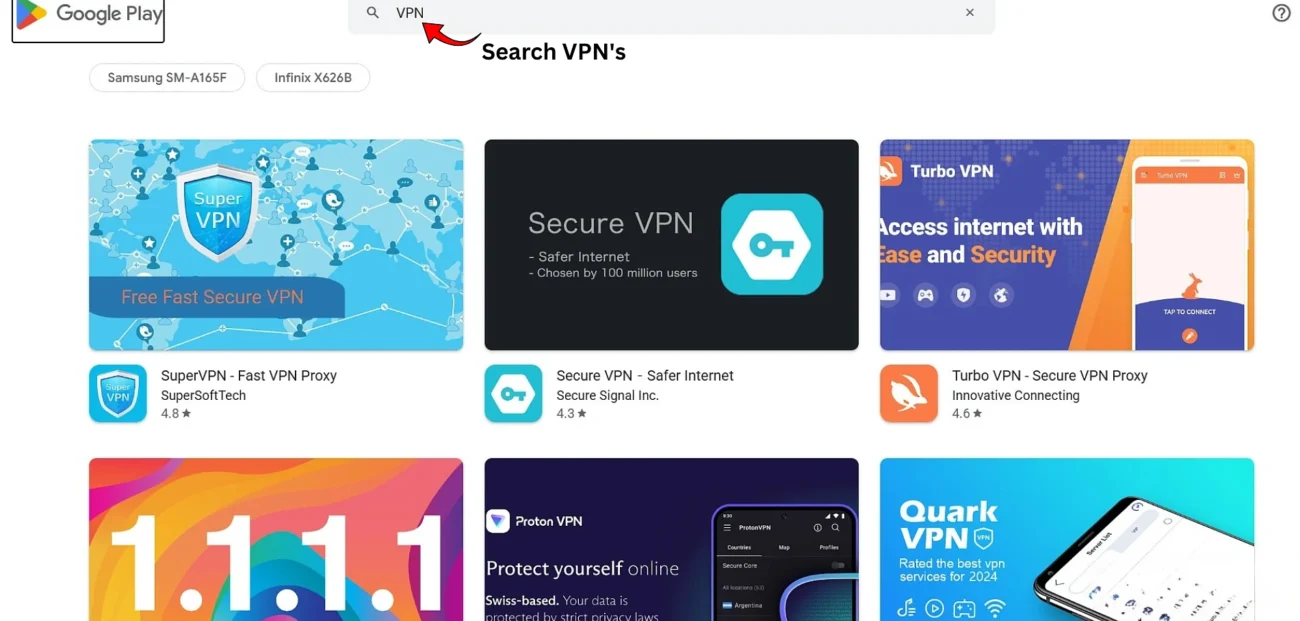
On the Onn home screen:
- Open the Google Play Store.
- Search your VPN’s name.
- Hit Install, then Open when it finishes.
If the Play Store won’t surface the app for some reason, sideloading is a fallback but for these mainstream providers, you usually won’t need it.
Step 4: Grant The One Permission It Asks For
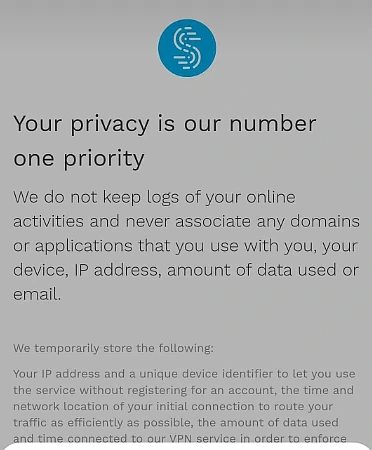
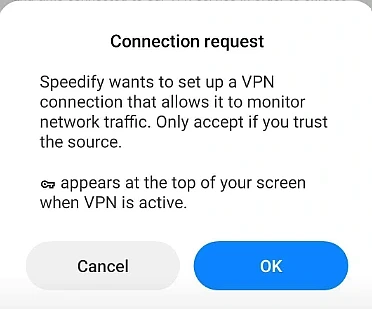
When the app first opens, it asks for permission to set up a connection and monitor network traffic. That line scares people, so let me be clear:
- It’s a standard Android requirement every app has to request it.
- It does not mean the provider is reading or logging your browsing.
- You have to approve it for the VPN to work at all.
Approve it and move on.
Step 5: Connect And Test
Sign in, pick a server, connect.
- A US server for general privacy at home.
- A specific country’s server if you’re reaching something tied to that region.
- Open your streaming app and confirm it loads.
That’s the whole setup.
Why I Wanted A VPN On A Streaming Box At All
My real reason is simple: I’m a longtime darts fan, and a lot of the coverage I follow is easiest to reach with a VPN when I’m travelling or the broadcast is region-locked. But once I started, I realised the same setup helps for plainer, everyday reasons too:
- Privacy on a device that watches everything you watch. A streaming box logs a surprising amount about your habits.
- Reaching content you’re entitled to but that’s geo-locked for example, your home country’s services while you’re abroad.
- Keeping your connection encrypted on a home network full of chatty smart devices.
Whatever your reason, the steps below are the same.
The Part Nobody Warns You About: The Region Lock
Here’s the thing that caused most of the panic I saw online before I started.
After a recent update, Onn streaming devices began checking your location during the very first setup screen. If the box decides you’re outside the US, it throws an “Unsupported region” error and won’t continue until you work around it.
A few truths worth getting straight, because the forum horror stories blow this out of proportion:
- It only checks during initial setup. Once you’re past that screen, the device keeps working normally.
- If you’re already set up in the US, an update won’t lock you out. The trouble only hits people configuring the box from outside the country or anyone who factory resets while abroad.
- I’m in the US, so this never touched me. If you’re setting yours up at home in the States, you can relax this wall isn’t yours to climb.
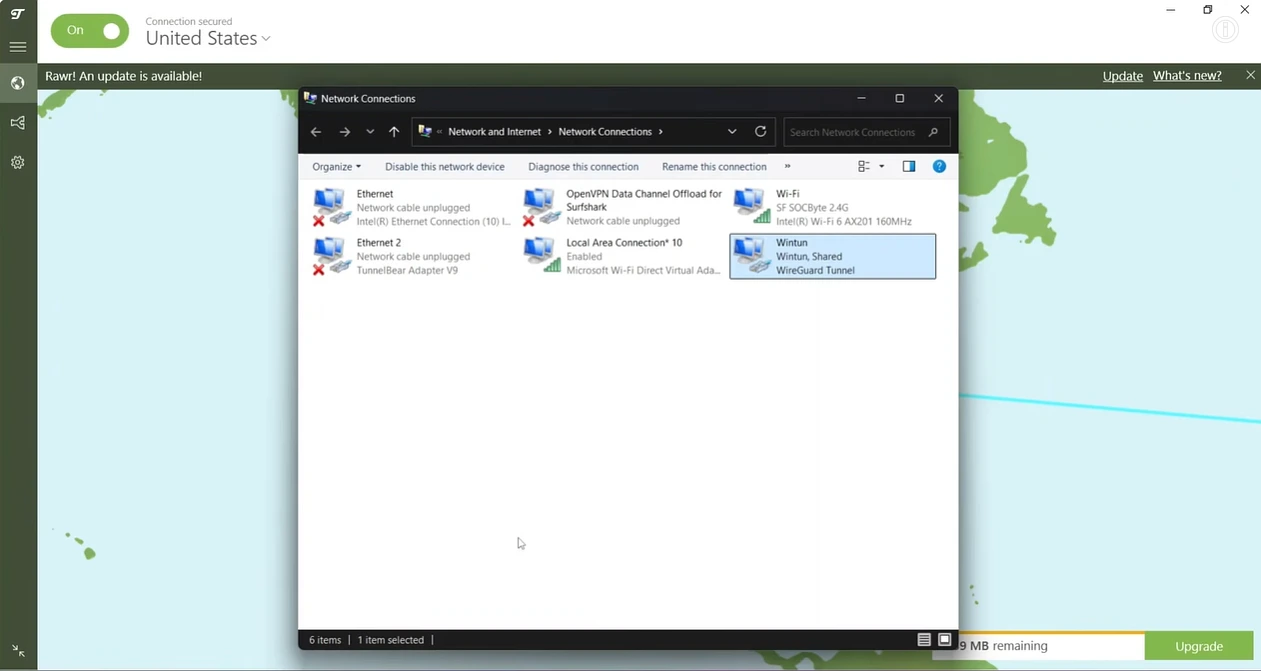
I'm spelling that out because the scary posts make it sound like every Onn owner is about to get bricked. They're not. Work out which situation you're actually in before you worry about any of it. (And if you are setting one up abroad, the common fix is to run the initial setup through a US-based on your router, or by sharing a connection from a PC as a hotspot until you clear that first screen.)
The One Step The Setup Screen Never Mentions
So here it is the step I promised at the top, and the one that quietly separates a setup that keeps working from one that feels broken a week later:
Save more than one server as a favourite before you ever need it.
It sounds trivial. It isn’t. The reason setups feel “broken” later is that people connect to a single server, watch one thing, and then get stuck the next time they want something from a different region. They assume the VPN failed. It didn’t they just never set up the flexibility.
What I did instead:
- Saved a US server for everyday privacy.
- Favourited a second region’s server for the content I actually got the VPN for.
- Tested both the same night before there was a live event on the line.
Two favourites and a five-minute test is the difference between a box that works the way you want and one you’re fighting at the worst possible moment. The default setup nudges you toward one tidy lane; setting up two saved servers just means you’re ready for both.
What I’d Tell A Friend Before They Start
The short version, over the fence:
- You probably won’t hit the region lock if you’re setting up in the US.
- Update first, then install the VPN never the other way around.
- Only use a VPN with a real Google TV app, not a phone app in disguise.
- The scary permission prompt is normal. Approve it.
- Save two servers and test both future-you will be grateful.
For a thirty-dollar box, the Onn 4K does almost everything I need. Set up the right way, the VPN handles the rest and the step that makes it all hold together is the one the setup screen never bothers to mention.
Set it up like you own it, not like you’re renting it.