
ESP-INIT-001 Xbox Error: How to Actually Fix It (Follow These Steps)

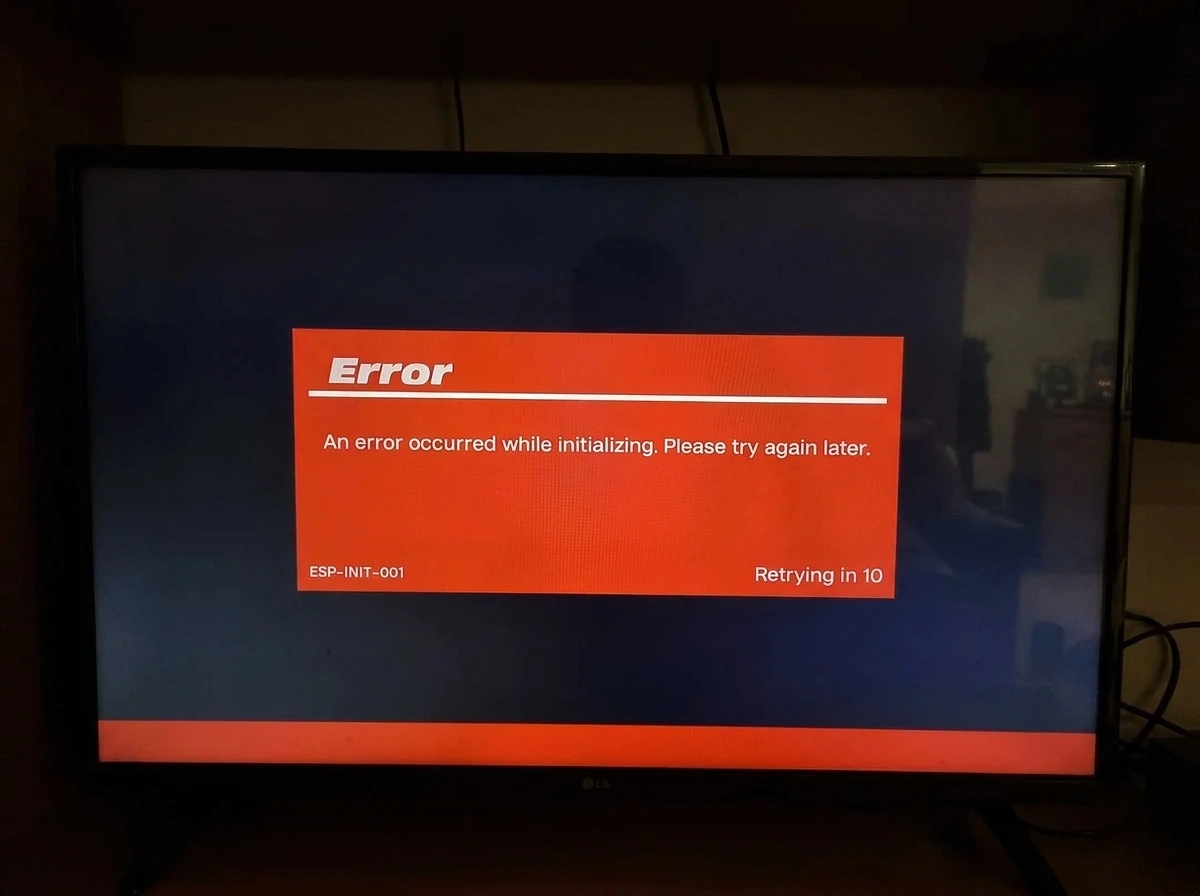
A player posted a photo of it this week: the orange box, the bold Error header, “An error occurred while initializing. Please try again later,” the code ESP-INIT-001 in the corner, and that maddening “Retrying in 10” counter that never actually gets anywhere.
Their troubleshooting list was genuinely good. Cleared the cache. Full console shutdown. Deleted and reinstalled the game. Unplugged the router. Removed and re-downloaded the Xbox profile. Nothing. Then the detail that seems to crack the case wide open:
“Weirdly enough I was able to log in without issue on my friend’s Xbox Series X.”
That one line looks like proof. It isn’t at least not of what most people conclude from it. And understanding why is the fastest route out of this loop.
Quick Overview
- ESP-INIT-001 is an Epic error, not an Xbox one. Stop resetting the console first.
- Working on a friend’s Xbox only clears your account not your console or your network.
- Run the hotspot test. Same console, different network, one variable changed.
- Works on hotspot? → DNS, NAT, router, or a filter at home.
- Still broken? → console-side or Epic-side; check their status before reinstalling again.
One clean test beats five hopeful ones. Change one thing, watch what happens, and let the result tell you where to look next.
First: This Isn’t An Xbox Error At All
Worth knowing before you factory-reset anything else. The ESP- prefix belongs to Epic Games, not Microsoft. ESP-INIT-001 is Epic’s code for the game failing to initialise its online services and Epic has publicly acknowledged it affecting Xbox players, saying they were investigating.
So all that console-side work the profile removal, the reinstall was aimed at the wrong layer. It’s not that your Xbox is broken. It’s that the game can’t complete its handshake with Epic’s back end from this setup.
Why The Friend’s-Console Test Proves Less Than It Seems
Here’s the trap. When you took your account to a friend’s house and it worked, you didn’t run one test. You ran two at once you changed the console and the network.
That means all it actually rules out is your account. Your login is fine, your entitlements are fine, you’re not banned. Genuinely useful to know. But it leaves both remaining suspects standing:
- Suspect A: your console. Something in the local install, storage, or system state.
- Suspect B: your home network. Your router, ISP, DNS, or NAT setup blocking the connection Epic needs.
Most people walk away from that test convinced it’s the console because that’s the thing they physically carried over. So they wipe the Xbox again. And again. Meanwhile the actual culprit is sitting in the corner of the room with a blinking light on it.
The One Clean Test That Splits Them
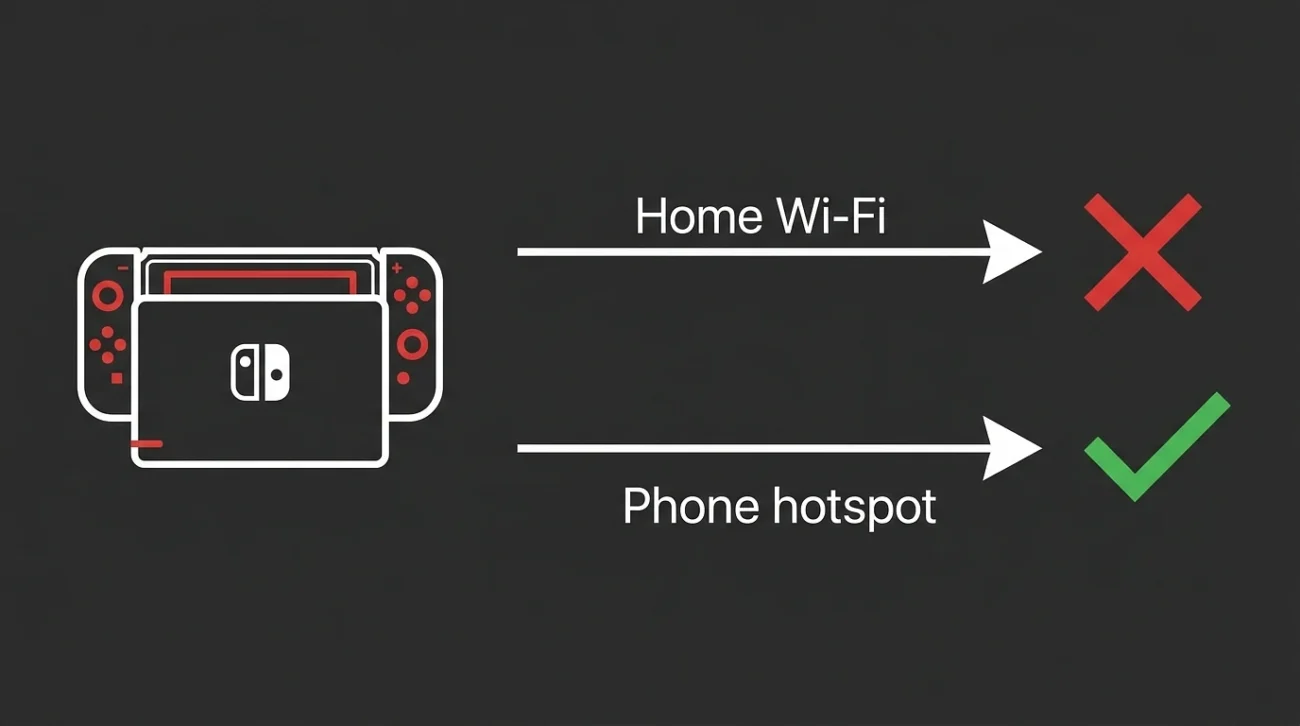
Change one variable, not two. The quickest way: connect your Xbox to your phone’s mobile hotspot and launch the gaming.
Same console. Different network. Whatever happens next tells you exactly which suspect you’re dealing with.
If It Works On The Hotspot → It’s Your Network
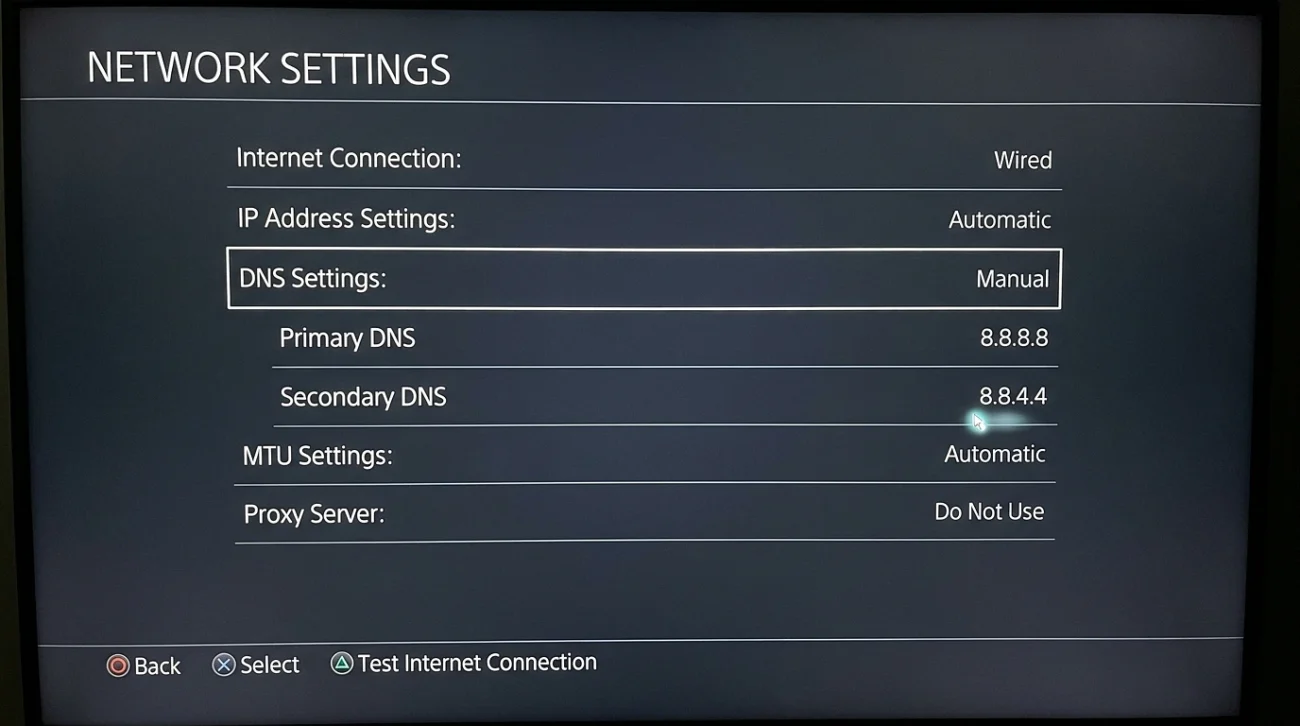
Your console is fine. Something at home is blocking Epic’s services. Work through these in order:
- Change your DNS. On the Xbox: Settings → General → Network settings → Advanced settings → DNS settings → Manual. Try
8.8.8.8/8.8.4.4, or1.1.1.1. ISP DNS failing to resolve Epic’s servers is a common, invisible cause. - Check your NAT type in the same network menu. If it’s Strict, that’s your lead – enable UPnP on your router, or open the ports Epic lists.
- Power-cycle the router properly – unplug for a full 5 minutes, not a quick off-on. (A brief reboot often doesn’t clear the state that matters.)
- Look for anything filtering traffic – a VPN, an ad-blocking DNS service like Pi-hole, parental controls, or ISP-level protections. Any of these can quietly break a game’s service calls while leaving the rest of your internet perfectly healthy.
If It Still Fails On The Hotspot → It’s Your Console (Or Epic)
Now you’ve genuinely isolated it. Before another reinstall:
- Check Epic’s status and social feeds first. If it’s a live server-side issue, nothing you do at home will fix it you wait. That’s not a satisfying answer, but it beats a wasted evening.
- Clear the persistent storage / local save cache for the game specifically, then reboot fully (hold power 10 seconds, unplug 30 seconds).
- Reinstall to a different drive if you have external storage. It’s a long shot, but it rules out a bad install location.
The Bit That Stings: Sometimes There’s Nothing To Fix
Epic acknowledged this error publicly as something they were looking into. When a publisher says that, it usually means a chunk of affected players aren’t going to fix it themselves and every reinstall is time spent solving someone else’s problem on your own hardware.
That’s exactly why the hotspot test is worth five minutes before anything drastic. It tells you whether you’re the one who can do something about it, or whether you’re waiting on a fix that’s already someone else’s job.