Two Settings Were Stopping Stranded Deep on GameNative (Not Your Phone)

You’ve tapped OK on that error five times now. Maybe ten. The game flickers, dies, and slaps the same message back in your face — “Steam could not be initialised,” or “Failed to load dll, code 998” and somewhere around attempt twelve you start wondering if your phone’s just too weak for this.
Here’s the twist: your phone is almost certainly fine. GameNative’s fine too. What’s actually broken is two settings — and the maddening part is you can see both of them on a single screen.
Let me show you which two, why they’re doing this, and why every “just restart your phone” guide has been wasting your evening.
The Trap Nearly Everyone Falls Into
When a game won’t launch, the instinct is to blame the big, scary stuff. So people reinstall the whole game. They wipe the container and start over. They Google their phone model to see if it’s “powerful enough.” They tap OK and pray.
And none of it works — because none of it touches the actual cause. These two errors aren’t your hardware throwing in the towel. They’re GameNative doing exactly what you told it to do with two specific settings. Change the settings, and the errors vanish. So before you reinstall anything, let’s go and read what you actually told it.
30 Seconds On How Gamenative Really Works (Don’t Skip This)
This is the bit that fixes the first error, so stick with me.
GameNative looks like a "drop your game in and play" app, but it isn't. Under the hood it runs Winlator — the engine that fools Windows games into thinking they're on a PC — and the entire point of the GameNative layer on top is Steam. You sign in, you pick a game you own, and it launches the game through a live Steam session. That session isn't decoration. It's the thing that tells the game "yep, this person owns me — off you go."
Forget that, and you get our first culprit.
Culprit #1: The Path That’s Quietly Killing Your Launch
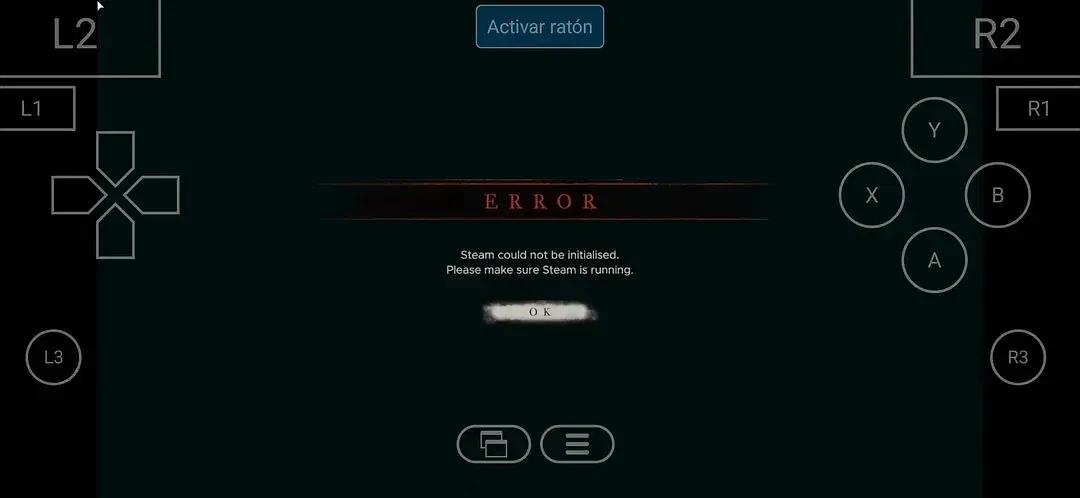
Pull up the game’s General settings. See the Executable path? If it’s pointing straight at the raw Stranded_Deep.exe, congratulations — you’ve found Error #1.
Stranded Deep is wrapped in Steam’s copy-protection. The very first thing it does on boot is look around for a running, signed-in Steam session that owns it. Launch the bare .exe and there’s no session there — so the game knocks on Steam’s door, finds nobody home, and quits with “Steam could not be initialised.” It’s not a glitch. It’s the DRM working perfectly, just not in your favour.
The fix:
- Sign in to Steam inside GameNative with the account that owns the game.
- Launch Stranded Deep from GameNative’s Steam library — not from a shortcut aimed at the
.exe. Let GameNative do the launching so Steam is alive underneath it. - Already signed in and still stuck? Close the container fully with Exit (not minimise), reopen, try again. Stale sessions cause this too.
That bare-exe shortcut was never going to work, no matter how hard you mashed OK.
Culprit #2: The One Word In Your Settings Sabotaging Your Graphics
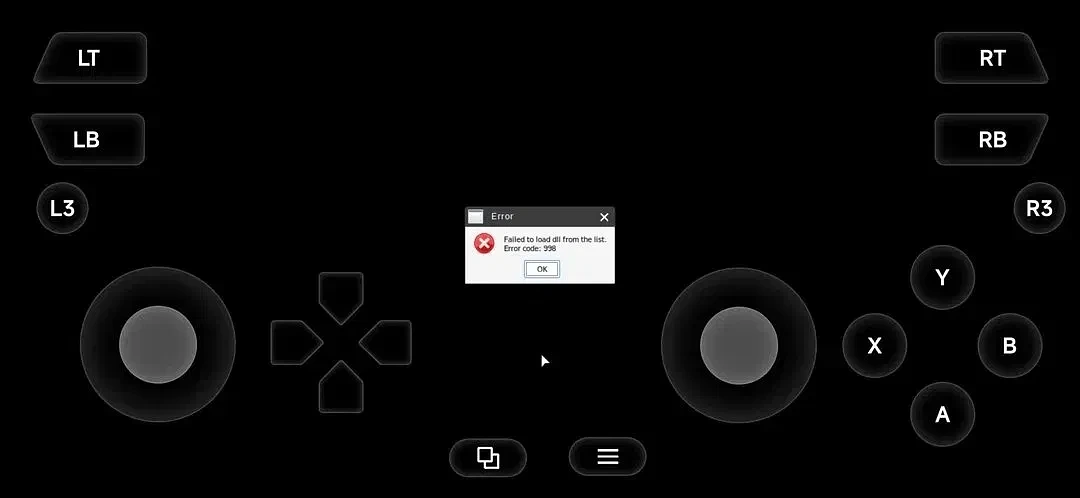
Different error, different villain — and it’s hiding in your Launch arguments box. Look for this: -window-mode exclusive.
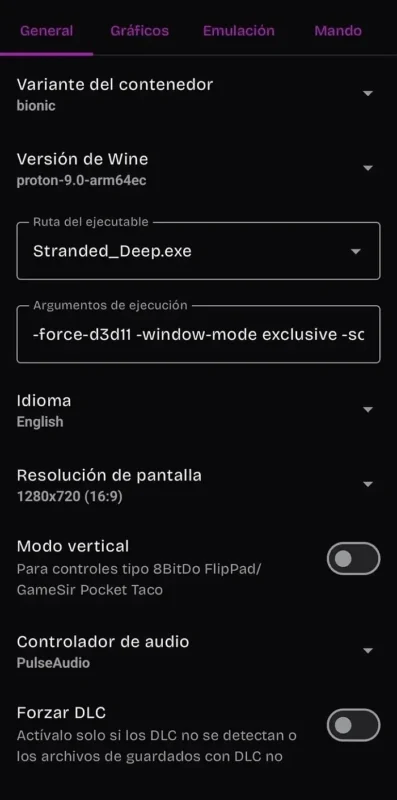
That single word, exclusive, is very likely your Error 998. Here’s why. Code 998 is a memory-access error — Wine tried to load a graphics DLL and the whole thing fell over. And exclusive fullscreen is one of the most reliable ways to cause that, because it demands direct, low-level control of the display — exactly the kind of thing that breaks inside an emulation layer running on a phone. Bolt a forced renderer next to it (-force-d3d11) and you’ve basically handed Wine a job it can’t finish.
The fix — one change at a time, in this order:
- Bin the “exclusive” arg first. Clear the launch arguments, or swap
-window-mode exclusivefor borderless/windowed. Given what’s in that box, this is your most likely fix — try it before touching anything else. - Switch the Wine version. If it’s on
proton-9.0-arm64ec, try a different build. 998 is often just a version that doesn’t get along with this game. - Swap the graphics driver. On a Snapdragon (Adreno) phone, the Turnip driver is far steadier than the generic one for loads of titles.
Whoever set this up changed two things at once — the renderer and the fullscreen mode — which is exactly why it was such a pain to track down. Change one, test, repeat. Tedious, yes. But it’s the only way you’ll actually know what fixed it.
The 2-Minute Version (For When You Just Want It Working)
No patience? Do this and walk away:
- Steam error? → Sign into Steam in GameNative, launch the game from the Steam library, not the exe.
- 998 error? → Delete
-window-mode exclusivefrom the launch arguments. Still crashing? Change the Wine version.
That’s the 90% fix for both, in about the time it takes to make tea.
“I Did All That And It Still Won’t Run”
Fair. Here’s the honest bit nobody likes to say: GameNative is emulating an entire Windows PC on a phone, which is a genuinely heavy ask. A Snapdragon 8-series chip with 8GB+ of RAM will sail through things a budget device simply can’t. So if Stranded Deep still chokes after both fixes, sometimes it really is the hardware hitting its ceiling — not you doing anything wrong. No amount of setting-tweaking beats raw silicon.
Pin This
- “Steam could not be initialised” = you’re launching the bare
.exe. → Launch through GameNative’s Steam library instead. - “Failed to load dll, code 998” = blame
-window-mode exclusive. → Delete it, then try a different Wine version. - Still dead? = possibly a hardware limit, not a settings one.
Two errors. Two settings. About two minutes. Now go get stranded properly.