
The Best Apps to Play Windows Games on Mac (M1-M4 Compared)

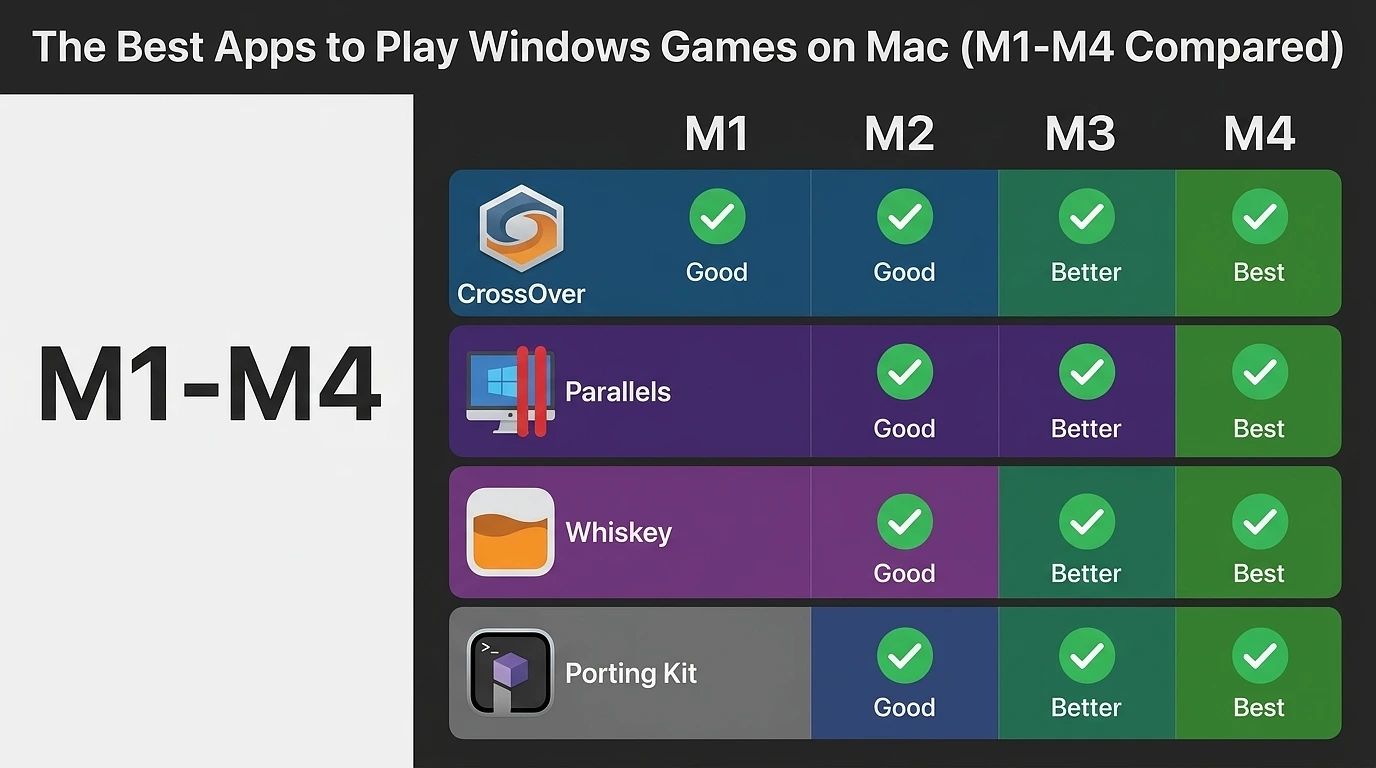
Apple Silicon completely changed what Mac hardware can handle. From the base M1 to the latest M4 chips, the raw graphics and computing power are already there. The only remaining hurdle is software compatibility. Because most top-tier PC games are built strictly for Windows, you need a middleman to translate those instructions for macOS.
You do not need to boot into a separate operating system or buy a dedicated gaming PC. Instead, you can choose between native translation layers, full virtual environments, or cloud streaming.
Here is exactly how the top options stack up for performance, compatibility, and ease of use.
Quick Comparison: Mac Gaming Solutions at a Glance
| App | Method | Pricing | Best For | Anti-Cheat Support |
|---|---|---|---|---|
| CrossOver | Translation (GPTK 2.0 / Wine) | Paid (~$74) | Modern AAA Games (Cyberpunk, Elden Ring) | No (Fails on Kernel-level) |
| Whisky | Translation (GPTK / Wine) | Free (Open Source) | Casual Steam gaming on a budget | No |
| Parallels Desktop | Virtual Machine (Windows 11) | Paid (~$99/yr) | Retro titles, mods, and productivity | Very Limited |
| GeForce NOW | Cloud Streaming | Free / Subscription | Competitive shooters & low-spec Macs | Yes (Runs on cloud servers) |
1. CrossOver (Best Overall for Compatibility & Performance)
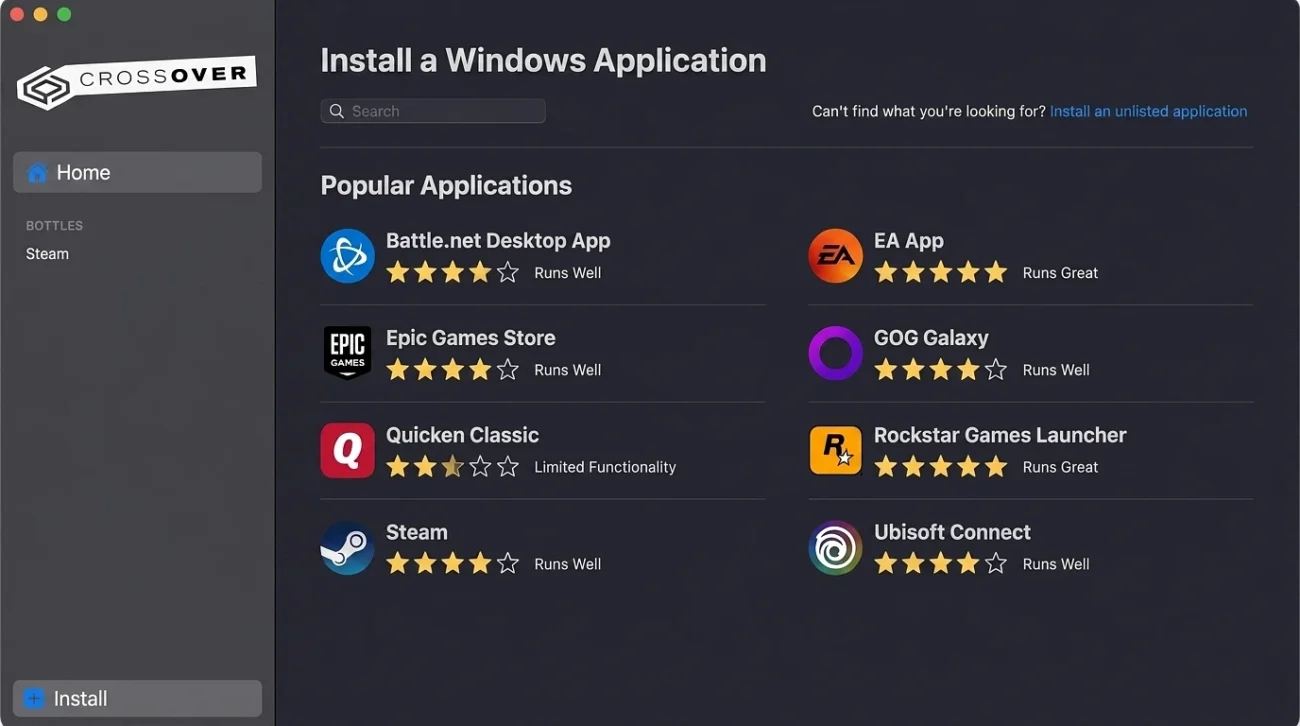
Built by CodeWeavers, CrossOver is the gold standard for playing demanding PC games on Apple Silicon. It does not run a background version of Windows. Instead, it translates Windows commands into macOS commands in real time using Apple’s Game Porting Toolkit (GPTK) and Wine.
- The M1–M4 Advantage: CrossOver directly utilizes the GPU power of modern Apple chips. On M3 and M4 chips, it unlocks advanced features like hardware-accelerated ray tracing and AVX2 instruction support. This allows you to play heavy titles like Cyberpunk 2077, Elden Ring, and Diablo IV at incredibly stable framerates.
- Pros: Unmatched frame rates; simple integration with Steam, Heroic, and Epic Games launchers; vibrant community troubleshooting.
- Cons: It is a premium product costing around $74. It will not run multiplayer games that require kernel-level anti-cheat software (like Valorant or Fortnite).
2. Whisky (The Best Free Alternative)
Whisky is a clean, open-source application built as a graphical user interface wrapper around Wine and Apple’s Game Porting Toolkit. It offers a completely native Mac interface without making you use the Terminal.
- The M1–M4 Advantage: Because it uses the same core translation principles as CrossOver, you get near-native execution speeds without the massive performance loss of a virtual machine.
- Important 2026 Update: While Whisky remains highly functional for hundreds of direct DirectX 11 and 12 titles, the official project has transitioned into a legacy state, with developers pointing users toward CrossOver for long-term compatibility updates. It is still the absolute best starting point if you want to test your existing Steam library for free.
- Pros: 100% free; incredibly clean and lightweight design; straightforward drag-and-drop launcher configuration.
- Cons: Requires more manual fine-tuning and troubleshooting than paid options; compatibility fixes arrive slower.
3. Parallels Desktop (Best for Indie Games, Mods, & Older Titles)
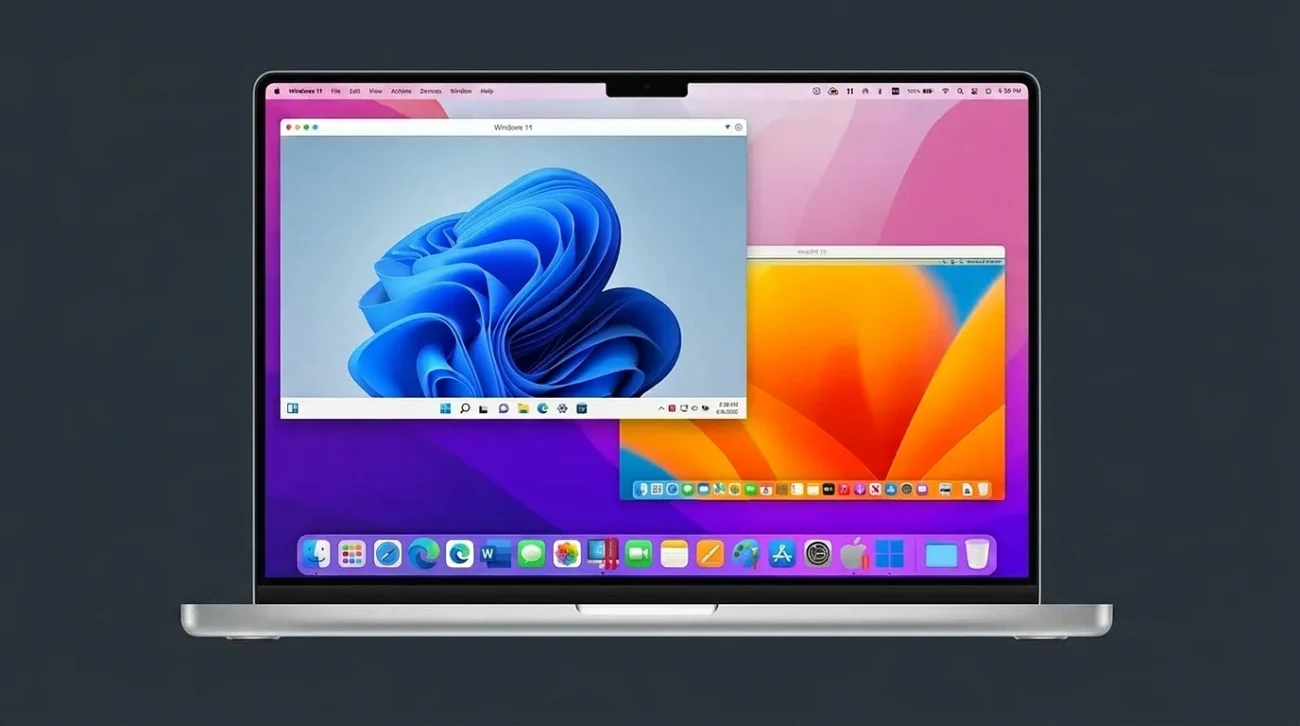
Parallels Windows Environment. Source: CNET
- The M1–M4 Advantage: The sheer multi-core speed of M-series chips allows Parallels to run incredibly fast. However, because your Mac has to run two operating systems simultaneously, your graphic performance takes a significant hit compared to direct translation layers.
- Pros: The most compatible option for running game mod managers, steam community patches, older 32-bit retro games, and standard Windows workspace utilities (like Microsoft Office) side-by-side with your Mac apps.
- Cons: Demanding AAA titles will suffer from lower framerates. It requires a steep annual subscription (~$99/year) and a portion of your Mac’s system memory must be locked away exclusively for the virtual OS.
4. GeForce NOW (Best for Competitive Multiplayer)
If your favorite games use strict anti-cheat software, or if you are gaming on a base-model MacBook Air with limited internal storage, cloud gaming is your only functional option. GeForce NOW streams the game directly from a high-end remote PC rig straight to your screen.
- The M1–M4 Advantage: Bypasses local hardware constraints entirely. Your Mac won’t get hot, the fans won’t spin, and you will save hundreds of gigabytes of SSD space.
- Pros: Easily runs games that fail on translation layers (like Apex Legends or Call of Duty). It preserves your battery life completely.
- Cons: Requires a fast, rock-solid internet connection. It does not support offline play, and top-tier graphical settings require a monthly membership.
Hardware Check: How Your Specific Mac Handles Gaming
The chip inside your Mac dictates your baseline resolution and setting limits:
- M1 & M2 (Base Models): Perfectly capable of running indie games and older titles. For newer AAA games, expect to drop your graphics settings to medium or low and use 1080p resolution to hold a smooth 40–60 FPS.
- M3 & M4 (Pro/Max/Ultra): These chips handle modern titles with ease. You can comfortably push graphics settings to high, enable built-in upscaling tools, and run native retina resolutions.
The 8GB RAM Bottleneck: If your Mac only has 8GB of unified memory, you will experience sudden performance drops and micro-stutters during heavy gaming sessions due to “memory swapping.” Before launching any heavy Windows game, completely close out your background browser tabs, video editing suites, and Discord to free up as much unified memory as possible.