
How to Use a VPN on a Controller

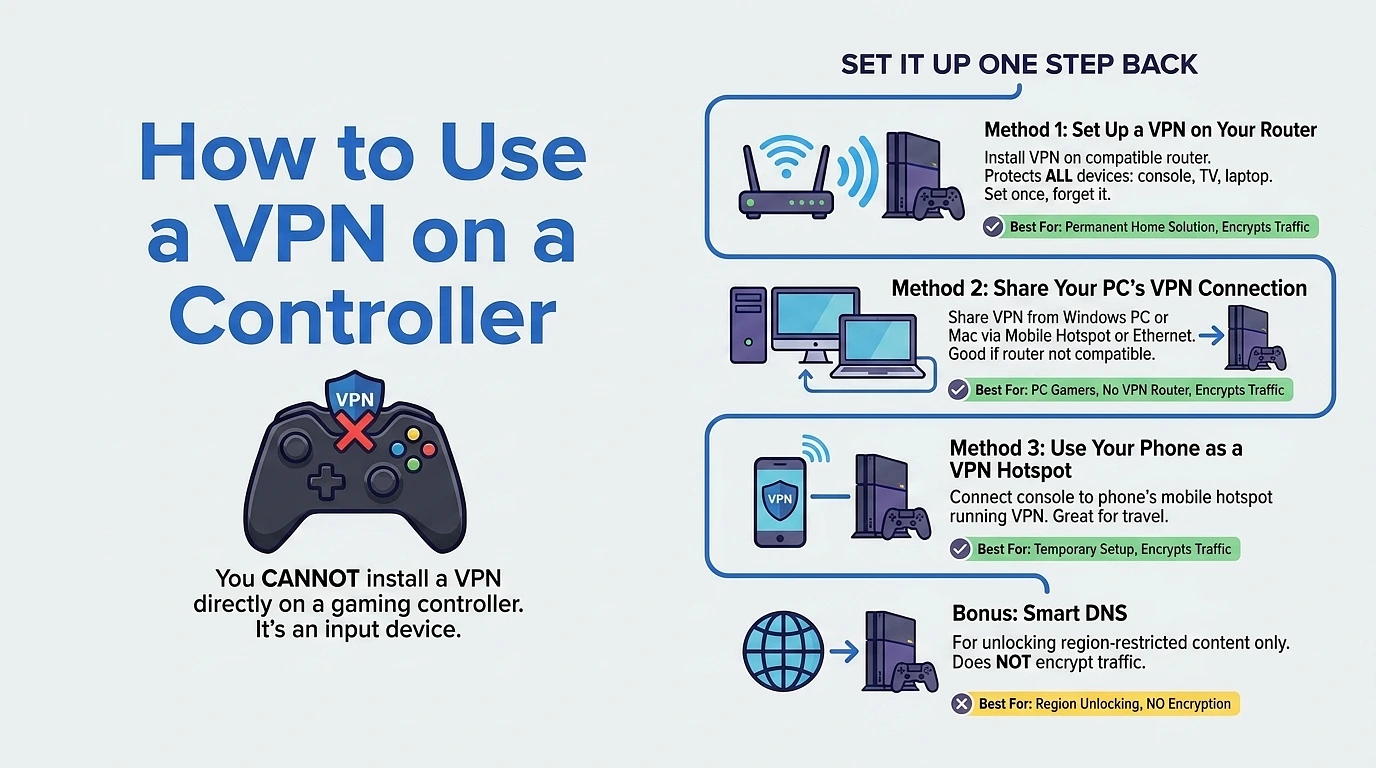
Let’s get one thing out of the way first you can’t install a VPN directly on a gaming controller. Controllers don’t have their own operating systems. They’re input devices, plain and simple. So there’s no app store, no settings menu, nothing to install anything on.
But here’s the good news: you don’t need to. You can still get your entire gaming setup protected by a VPN you just need to set it up one step back, at the network or device level. Once it’s running there, your console benefits from it without you ever digging into controller settings.
Method 1: Set Up a VPN on Your Router
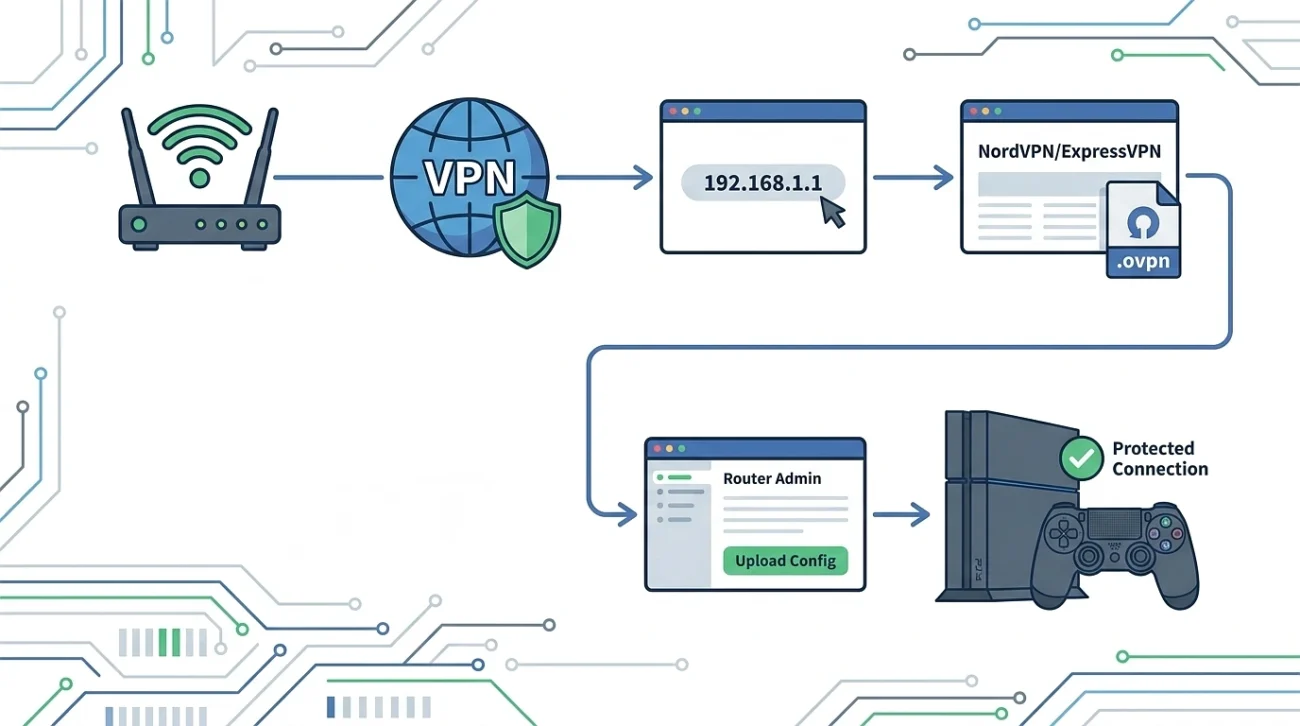
Honestly, this is the way to go if you want a proper, permanent fix. Install the VPN on your router and everything connected to your home Wi-Fi gets protected your console, your smart TV, your laptop, all of it. Set it once and forget it.
Steps to get it done:
- First, check whether your router actually supports VPN client mode. Most standard ISP routers don’t, but models running firmware like DD-WRT, ASUSWRT, or OpenWrt usually do. A quick check in your router’s settings will tell you.
- Open a browser and type
192.168.1.1or192.168.0.1to log into your router’s admin panel. - Head to your VPN provider’s website, log in, and grab the OpenVPN config files (
.ovpn). Most major providers like NordVPN or ExpressVPN make these easy to find. - Back in your router’s admin panel, find the VPN Client section and upload those config files.
- Enable the connection, and then just connect your console to your regular home Wi-Fi like nothing changed.
Your console is now routing through the VPN every single time it’s online. No repeated setup, no extra steps.
Method 2: Share Your PC’s VPN Connection
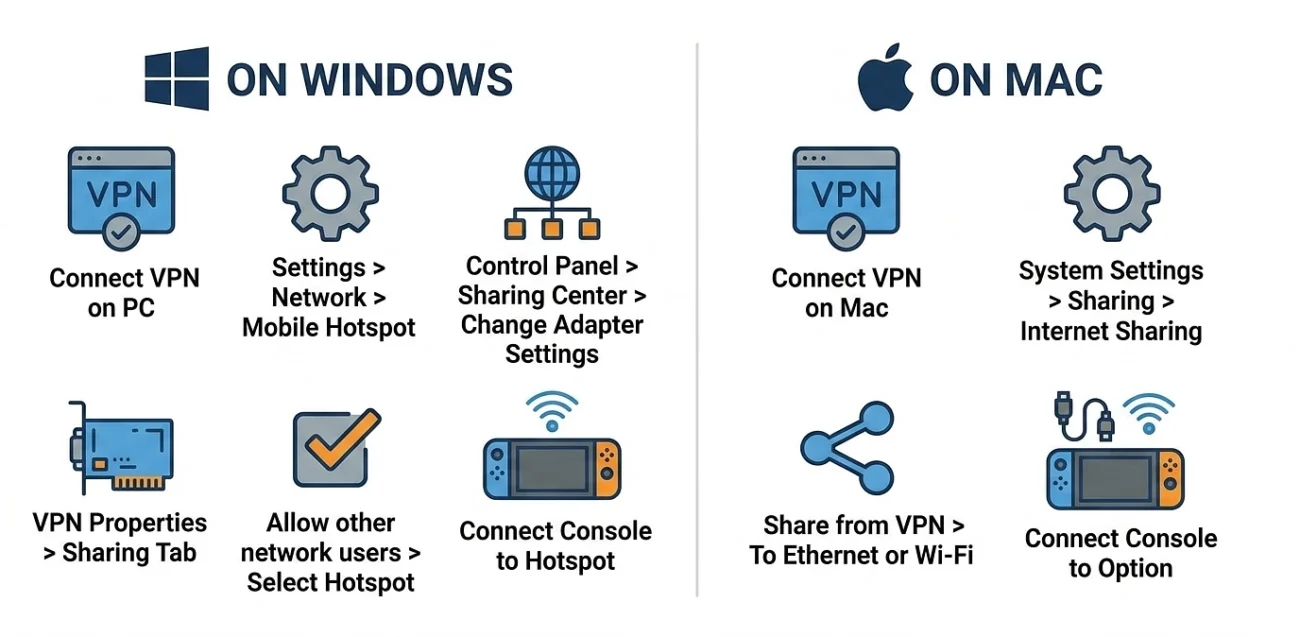
No VPN-compatible router? Totally fine. If you’ve got a Windows PC or a Mac nearby, you can share that machine’s VPN connection directly with your console.
On Windows
- Fire up your VPN app on your PC and connect to a server.
- Go to Settings > Network & Internet > Mobile Hotspot and switch it on.
- Open Control Panel > Network and Sharing Center > Change Adapter Settings.
- Right-click your VPN adapter, hit Properties, then go to the Sharing tab.
- Tick the box for “Allow other network users to connect through this computer’s internet connection” and pick your Mobile Hotspot from the dropdown.
- On your console, connect to that new hotspot and you’re good.
On Mac
- Connect to your VPN on your Mac first.
- Go to System Settings > Sharing > Internet Sharing.
- Set it to share from your VPN connection and enable sharing over Ethernet or Wi-Fi.
- Connect your console to whichever option you chose.
Method 3: Use Your Phone as a VPN Hotspot
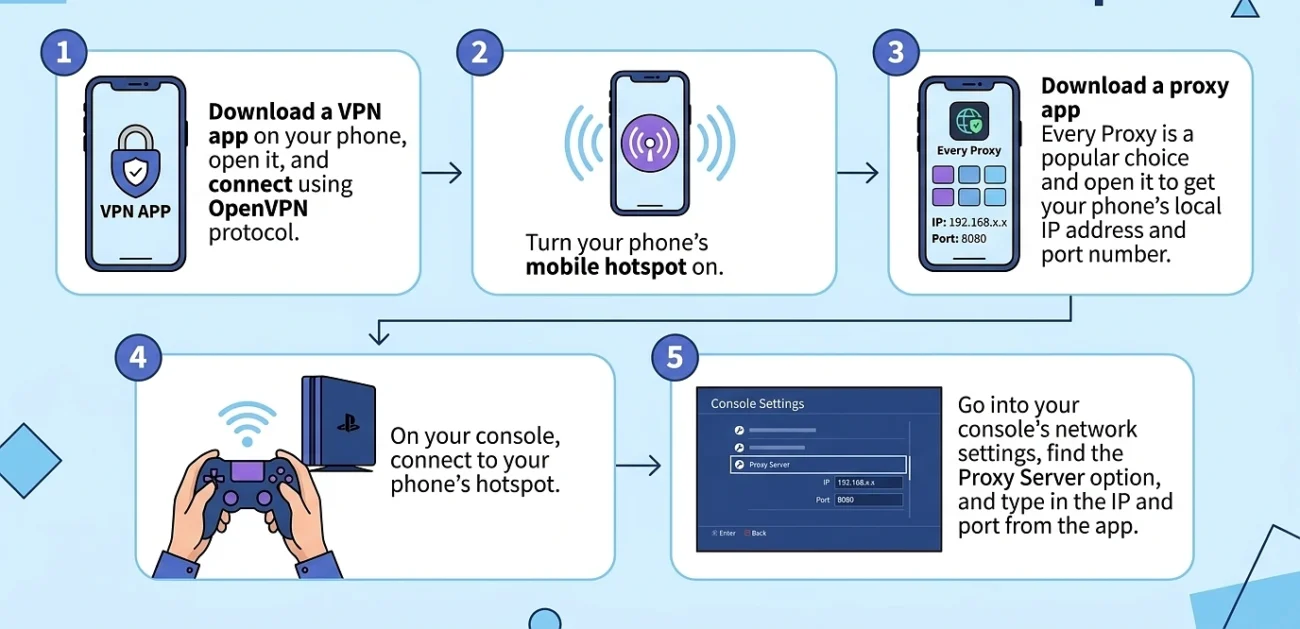
This one’s great when you’re away from home or just need something quick without messing with your router.
- Download a VPN app on your phone, open it, and connect using OpenVPN protocol.
- Turn your phone’s mobile hotspot on.
- Download a proxy app Every Proxy is a popular choice and open it to get your phone’s local IP address and port number (usually something like
192.168.x.x, port8080). - On your console, connect to your phone’s hotspot.
- Go into your console’s network settings, find the Proxy Server option, and type in the IP and port from the app.
It’s a few more steps than the other methods, but it works well when you need it.
Bonus: Smart DNS – For Unlocking Regions Only
If you’re not worried about privacy and just want to access a game store or streaming service from another country, Smart DNS is a lighter option. Most VPN providers include it as part of their service.
- Log into your VPN provider’s website and whitelist your home IP address.
- Copy the DNS server addresses they give you.
- On your console, go to Network Settings and set up a manual connection.
- Leave everything else on automatic, but enter those DNS addresses where it asks for DNS.
Just be clear on what this does and doesn’t do Smart DNS changes where websites think you are, but it doesn’t encrypt your traffic or hide your real IP. It’s purely for bypassing geo-restrictions.
| Method | Best For | Encrypts Traffic |
|---|---|---|
| Router Setup | Home users wanting a permanent solution | ✅ Yes |
| PC Hotspot / Ethernet | PC gamers or those without a VPN router | ✅ Yes |
| Smartphone Hotspot | Travel or temporary setups | ✅ Yes |
| Smart DNS | Region unlocking, nothing else | ❌ No |
If you’re at home and willing to spend 15 minutes on it, the router method is the best long-term move. If you just need something working right now, sharing from your PC or phone is quick and reliable. Either way, your gaming pc sessions can be VPN-protected the controller just isn’t where that setup happens.