
“Out of Video Memory” Crash in RE Village, Suicide Squad, or Any Big Game: What It Means and the Fix That Matches Your Case

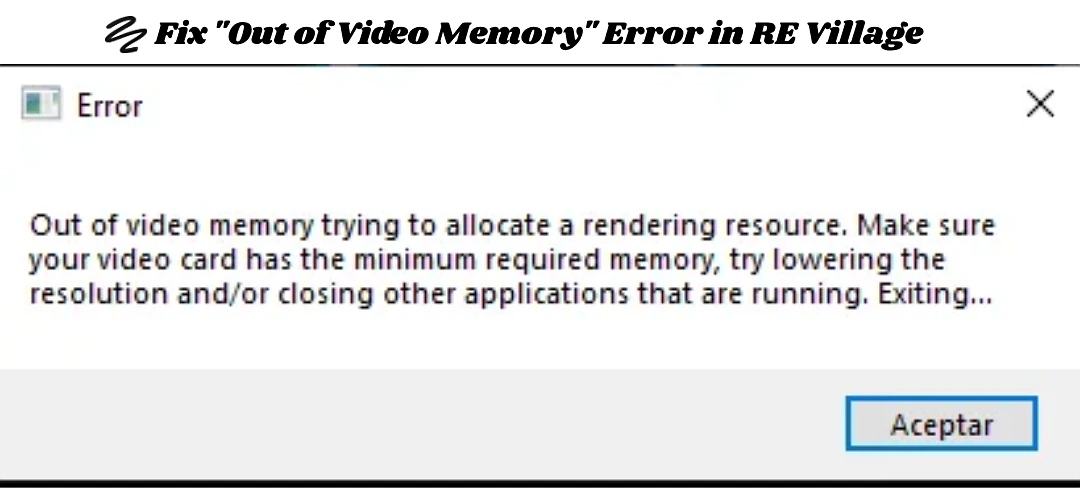
This popup shows up in RE Village one day, then Suicide Squad, then a game that ran perfectly last month, and suddenly your library of big titles is locked behind one sentence. Here’s the thing the dialog box won’t tell you: this error is often not about your video memory at all. It’s a generic message games throw when the graphics pipeline fails, and the right fix depends on which situation you’re actually in. So diagnose first, then fix.
First, Figure Out Which Case Is Yours
- One single game crashes, everything else runs. That’s a game problem. Jump to fixes 3 and 4.
- Several big games crash, and at least one of them used to work fine. That’s a system problem, not the games. Start at fix 1, and if you’re on a recent Intel i7 or i9, read fix 5 carefully because it may be the whole answer.
- Every game has always struggled on this gaming PC. Your GPU may genuinely be short on VRAM for these titles. Fix 4 is your lane.
If you’re the person who wrote in with RE Village, Suicide Squad, and Aliens: Fireteam Elite all failing when Aliens ran normally before, you’re squarely in the second case. Work top to bottom.
Fix 1: Give Your GPU A Clean, Current Driver
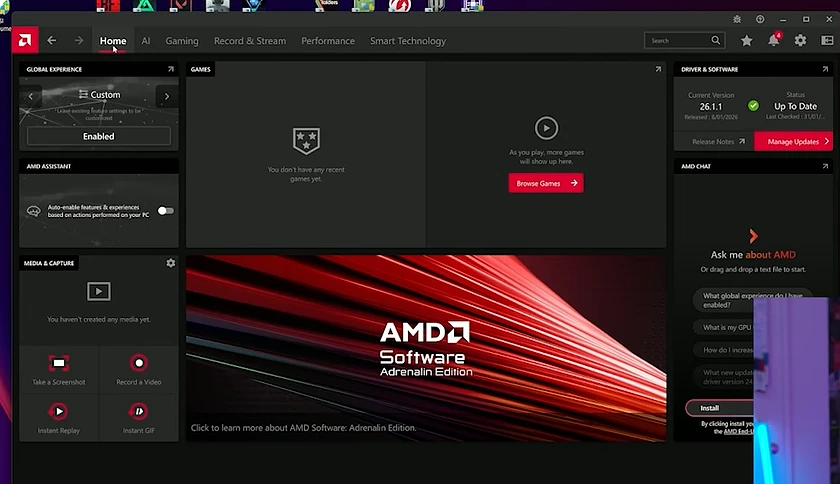
Outdated or corrupt graphics drivers are one of the primary triggers for this exact error, and a driver that broke recently explains games that “used to work.”
- Go straight to NVIDIA, AMD, or Intel’s site (or GeForce Experience / AMD Adrenalin) and grab the latest driver for your exact card.
- During install, pick the clean install option so the old, possibly corrupted driver is fully swept out rather than patched over.
- Reboot and test the game that most recently worked.
Fix 2: Take Your VRAM Back From The Apps Hoarding It
Your GPU’s memory isn’t reserved for games. Browsers, Discord overlays, and recording tools quietly eat VRAM, and browsers in particular can consume startling amounts of it, so the game may be told “no room” before it even loads.
- Press Ctrl + Shift + Esc to open Task Manager.
- Close browsers with many tabs, streaming or capture software, and any overlay you don’t need.
- On the Performance > GPU tab, watch Dedicated GPU memory. If it’s already half-used before you launch anything, you’ve found a thief.
Fix 3: Verify The Game’s Files
Corrupt or missing files trigger this error even when VRAM is fine, which is why storefronts list verification as a first-line fix.
- Steam: right-click the game > Properties > Installed Files > Verify integrity of game files.
- Epic: click the three dots on the game > Manage > Verify.
Let it repair whatever it finds, then relaunch. If one specific game still fails after this, a full reinstall clears the stubborn cases.
Fix 4: Lower The Load And Widen The Safety Net
If the error is telling the truth for your card, ultra textures and high resolution really can blow past your VRAM, and the fix is simply asking for less.
- In the video game settings, drop texture quality first (it’s the biggest VRAM eater), then resolution, shadows, and ray tracing.
- RE Village helpfully shows a VRAM usage meter in its graphics menu. Keep the bar out of the red.
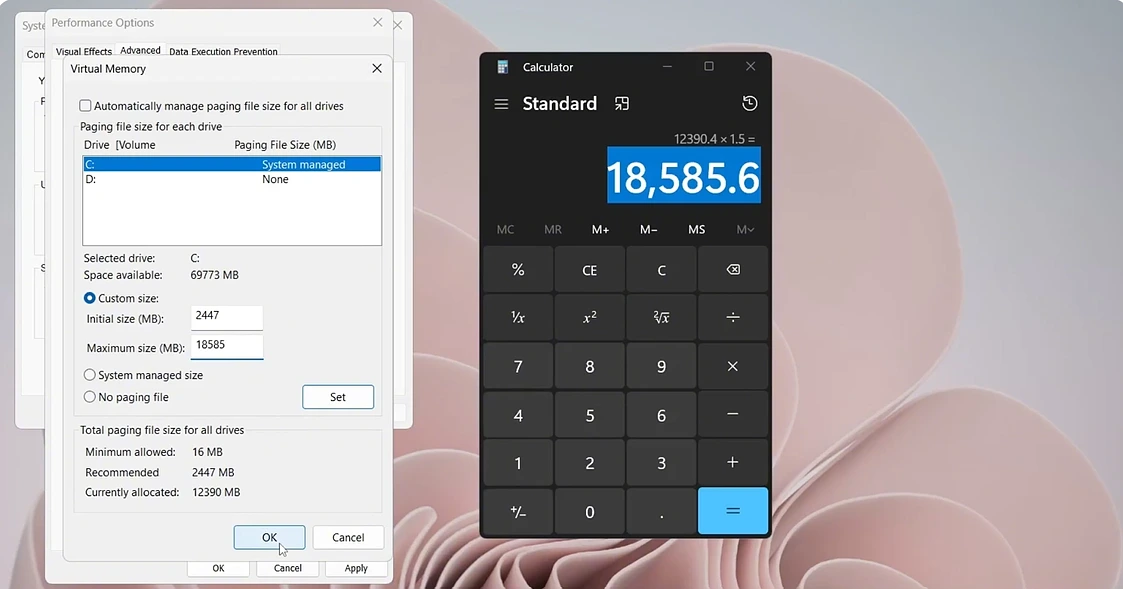
- Also give Windows more breathing room: press Win + R, type
sysdm.cpl, go to Advanced > Performance Settings > Advanced > Change, untick automatic management, and set a custom paging file of roughly 1.5 to 3 times your RAM.
Fix 5: The Intel 13th/14th Gen Trap (Read This If You Have An I7/I9 K-Series)
There’s a documented hardware quirk where this exact “out of video memory” message appears during shader compilation on Intel 13th and 14th generation CPUs, and it is the CPU misbehaving, not the graphics card, with even RTX 4090 owners hitting it. Players confirmed that games run fine again after correcting it in BIOS.
- Update your motherboard BIOS to the latest version, since board makers shipped fixes for exactly this instability.
- In BIOS, find Multicore Enhancement (name varies by board) and set it to Disabled – Enforce all limits, which forces Intel’s stock power limits, and one-line-fix reports say that alone stopped the crashes.
- Some players cleared it by modestly downclocking a CPU they’d never overclocked, which tells you how touchy these chips are at factory settings.
If your crashes started appearing across many games “out of nowhere” on one of these CPUs, do this fix before you spend money on a new graphics card you don’t need.
Still Crashing After All Five?
At that point test the GPU itself: run a stress tool like FurMark or 3DMark, and check temperatures while it runs. Repeated failures under load on a card that passes nothing points to failing hardware or an underpowered PSU, and that's warranty or upgrade territory rather than settings territory. But most people never get this far. Nine times out of ten, this scary dialog dies at fix 1, 2, or 5.