
That “Memory Could Not Be Written” Error When You Shut Down Windows 11 Is Not What It Looks Like

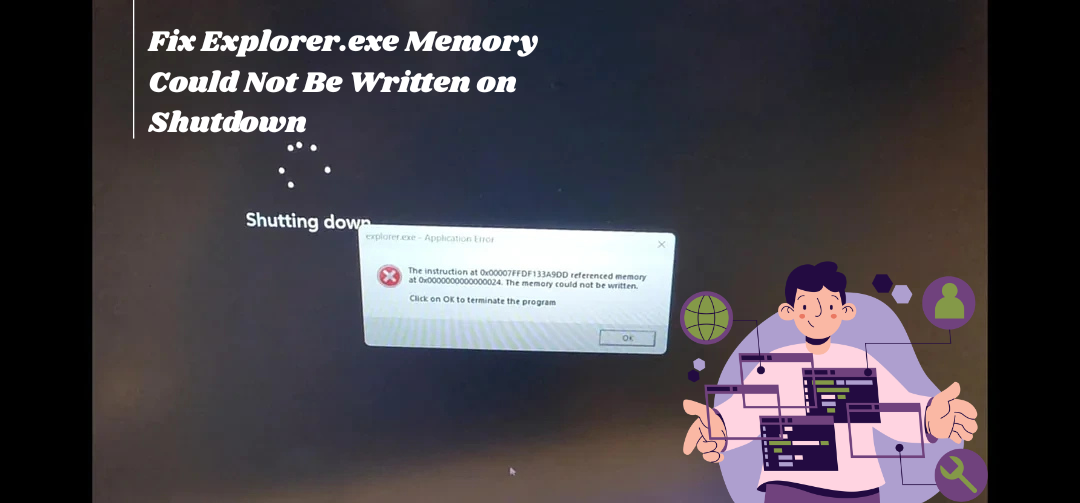
You click Shut down, the spinning dots appear, and then a grim little box pops up over the black screen: “explorer.exe – Application Error. The instruction at 0x00007FFDF133A9DD referenced memory at 0x0000000000000024. The memory could not be written.” It reads like your Gaming PC is falling apart. Take a breath, because it almost certainly isn’t. This is one of the most common cosmetic errors on Windows 11, your files and hardware are fine, and there’s a specific, slightly silly cause behind most cases of it.
What The Error Is Actually Saying
Explorer.exe is the process that runs your desktop and taskbar. During shutdown, Windows kills everything off in sequence, and this message means explorer got told to touch a piece of memory that had already been cleared away. In plain terms, the crash happened while the PC was already turning off. That's why nothing seems wrong when you use the machine. It doesn't hurt performance, it doesn't corrupt anything, and clicking OK (or ignoring it) changes nothing about how the PC boots next time. The only genuine problem is that it's ugly and it keeps showing up.
The Surprisingly Specific Usual Suspect
Here’s the part almost nobody guesses. This exact error, with the memory address ending in 0x0000000000000024, is heavily tied to game controllers and USB gadgets plugged in at shutdown. Xbox controllers, third-party pads, RGB light controllers, USB hubs, that kind of thing. Windows runs a background service called GameInput Service that wakes up whenever it spots a controller-class device, and it’s this service tripping over explorer at the final moment of shutdown.
Recent Windows 11 cumulative updates have also set this off in waves, with users seeing it appear out of nowhere on machines they hadn’t touched. So if you’re thinking “but I didn’t change anything,” you’re probably right. An update changed it for you.
Fix It: Start With The Two-Minute Checks
- Unplug USB extras before you shut down once, especially any controller, and see if the error skips a night. If it does, you’ve found your culprit without touching a single setting.
- Restart Windows Explorer if the error has been showing up at random times too: press Ctrl + Shift + Esc, find Windows Explorer in Task Manager, right-click it and hit Restart.
The Main Fix: Turn Off Gameinput Service
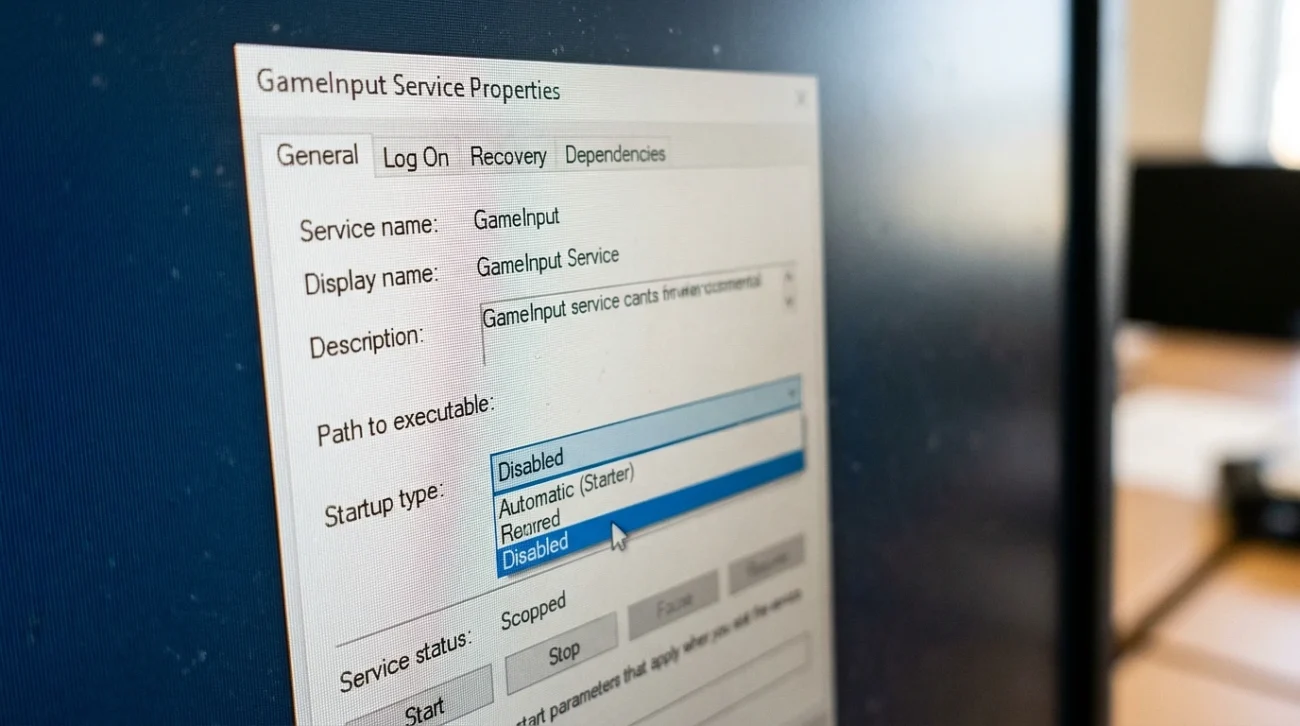
Disabling this one service is the workaround that kills the error for most people, and you lose nothing unless you use a controller on this PC:
- Press Win + R, type
services.msc, and hit Enter. - Scroll to GameInput Service, double-click it.
- Set Startup type to Disabled, click Stop if it’s running, then Apply and OK.
- Shut down normally and watch for the popup.
If you do game with a controller, leave the service alone and instead just unplug the controller (or its wireless dongle) before shutdowns, or flip the service back on when you play.
If It Still Appears: Repair The System Files
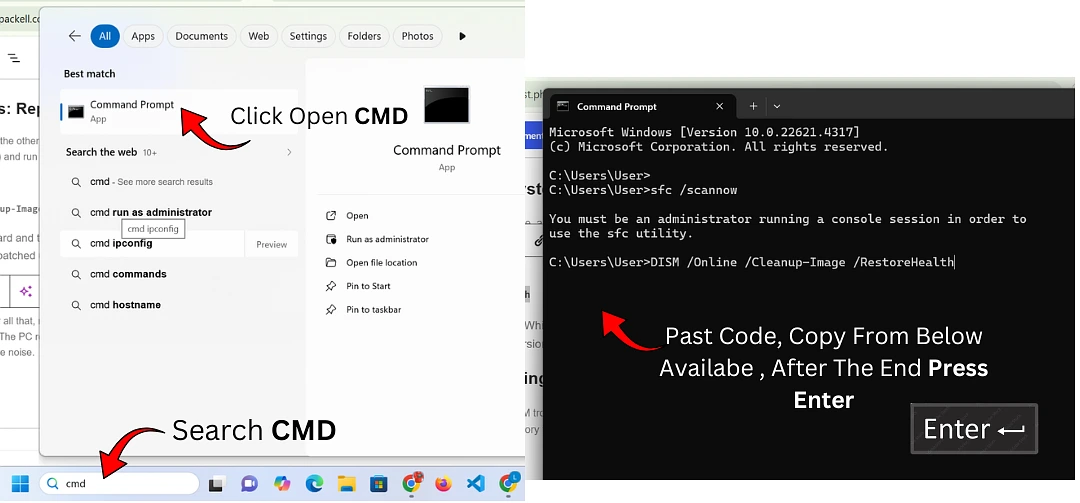
Corrupted system files are the other documented cause, and Windows has built-in repair for that. Open Command Prompt as administrator (search “cmd”, right-click, Run as administrator) and run these one at a time, letting each finish:
sfc /scannowDISM /Online /Cleanup-Image /RestoreHealth
Reboot afterward and test a shutdown. While you’re at it, open Settings > Windows Update and install anything pending, since Microsoft has patched update-borne versions of this error before and the fix may simply be waiting there.
The Deeper Check, Only If Nothing Above Worked
If the box still appears after all that, rule out actual RAM trouble so you can stop wondering. Press Win + R, type mdsched.exe, hit Enter, and choose Restart now and check for problems. The PC reboots into a memory test and shows results when you log back in. A clean pass confirms what was true all along: your hardware is fine and this was software noise.