How to Get a Game Working in GameNative When It Won’t Boot

GameNative lets you run your Steam, Epic, GOG, and Amazon games on an Android phone or handheld, and most of the time it just works. The trouble starts with the games that don’t. You install one, hit play, and the screen stays black or the game crashes straight back to your library. A boot failure here is almost never permanent, though. It’s usually the wrong config for your hardware, and a clear order of steps fixes most of them.
The mistake people make is reinstalling the game or the app over and over. That rarely helps. The real fixes live in two places: keeping GameNative current, and editing the per-game settings. Work through the steps below in order and stop as soon as the game boots.
Why Games Refuse To Boot In Gamenative
GameNative isn't running an Android version of your gaming, because one usually doesn't exist. It runs the Windows version through a compatibility layer, the same Proton technology that powers the Steam Deck, wrapped to work on Android. Whether a game boots depends on getting the right combination of Proton build, graphics driver, and game files for your specific chip. When that combination is wrong, the game fails before it reaches a menu.
GameNative stores those choices in a per-game container, which is the isolated set of settings for that one title. The app automatically applies known working configs the community has shared, so many games run with no effort, while plenty still need a manual change or two.
Update The App Before You Touch Any Settings
This is the highest-value step and the one most people skip. GameNative is updated constantly, and a lot of boot failures are bugs that have already been fixed in a newer build. Recent updates fixed Steam games that weren’t downloading their required components, added new graphics drivers that fix Unreal Engine 5 games, and restored sound in titles like Skyrim by handling their audio files correctly.
If your game won’t boot, grab the latest release from the GitHub releases page before anything else. Your exact problem may have been patched last week.
Check Emuready For A Config That Already Works
Before you change settings blind, see whether someone already solved it.
Filter it down:
- Search the exact game you’re trying to run.
- Set the emulator filter to GameNative.
- Add your processor if you can, since a fix for one chip won’t always apply to another.
A matching report usually names the precise setting to change. Often the fix is a single toggle, and you’re done in under a minute.
Edit The Game’s Container, One Setting At A Time
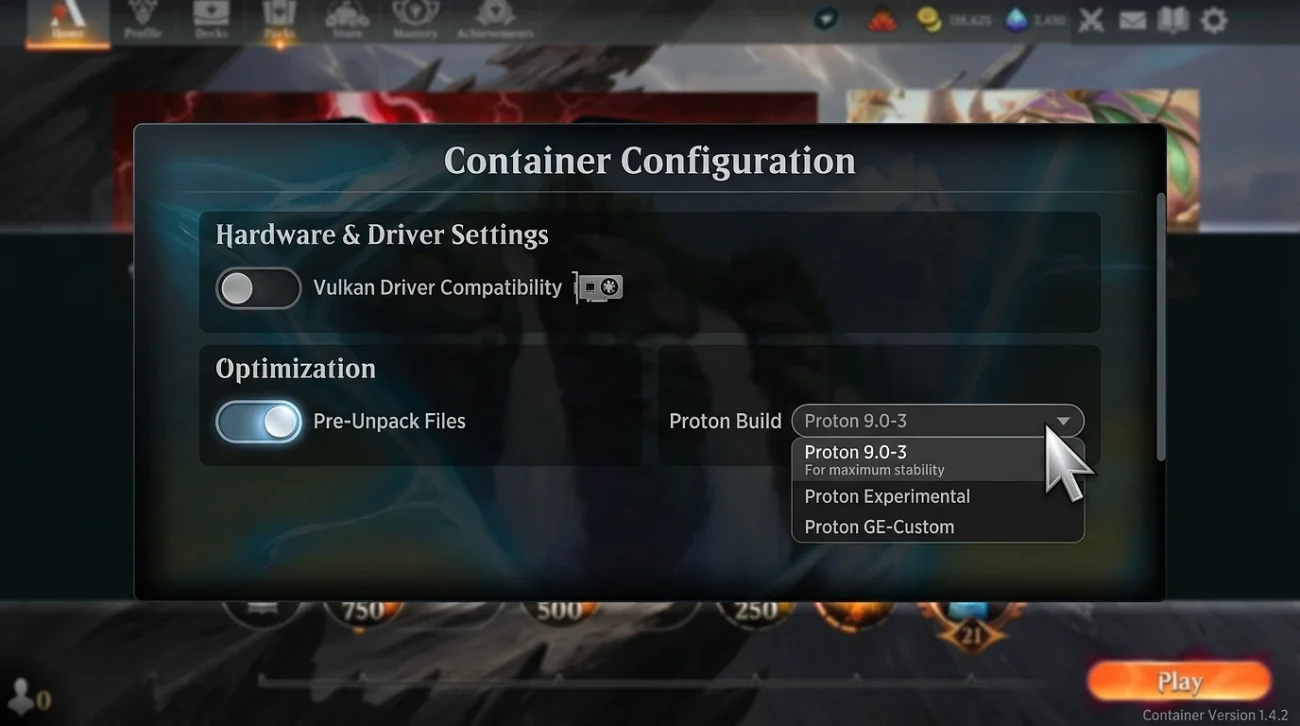
If no report covers your game, open the game's settings (the cog next to the title) and choose Edit container. Changes here only affect that one game, so you can experiment without breaking anything else. Try these one at a time, testing the boot after each:
- Turn on Unpack files. A common boot error clears the moment you enable this, and the app often flags it as the likely cause.
- Switch the Proton build. GameNative ships custom Proton versions, and swapping to a different one fixes a surprising number of launch failures. This is the single most reliable lever.
- Change the graphics driver. On a Qualcomm Adreno chip, switching the turnip driver version can clear black screens, especially on heavier DirectX 12 games.
- Let the redistributables install. If the game depends on components that didn’t download, GameNative usually tells you. Allow them to install, then try again.
Change one thing, test, then move to the next. Stacking five changes at once just hides which one worked.
Match The Symptom To The Fix
Most boot problems fall into a few buckets. Use this as a quick reference:
- Black screen on launch: swap the Proton build first, then the graphics driver, and check EmuReady for your chip.
- Instant crash back to the library: usually missing components or a bad config. Update the app, let the redistributables install, and turn on Unpack files.
- No sound once it runs: move to the newest Proton build, which handles audio files older versions dropped.
- Controller not detected: open the container’s input options and the control editor to map the pad, since GameNative supports controllers but doesn’t always grab them on its own.
Some Games Won’t Boot No Matter What, And Here’s How To Tell
Some games are a lost cause for now, and spotting them early saves an afternoon of fiddling. No amount of setting changes will force these to run:
- Games with kernel-level anti-cheat are usually blocked outright, because that protection doesn’t work through the compatibility layer.
- Demanding modern titles can be too heavy for a phone or handheld chip, so they may boot but run too slowly to play, or fail under the memory load.
- Games with no working config yet simply haven’t been cracked by the community. GameNative is young, and coverage grows week to week.
If you’ve updated, checked EmuReady, and tried the container changes with no luck, the project’s Discord is where people share fresh fixes, and it’s far more active than any other channel. The current invite is on the.
Linking Your Store Account Carries A Real Risk
GameNative is a third-party app, and using it means signing in with your Steam, Epic, GOG, or Amazon account. That’s how it reaches your library, but it also means trusting a tool outside the official stores with your login. The project being open source helps, but it’s still your call. Use a strong password and keep two-factor authentication switched on.
Once a game does boot, GameNative works really well, with cloud saves that move between your PC and your handheld and proper controller support. The wall is almost always that first launch, and working through these steps in order clears most of it.