
Why Your FFXIV Dawntrail Install Keeps Failing on Windows 11 (Error [30413][25008][20495])

![Fix FFXIV Dawntrail Error [30413][25008][20495] on Windows 11](https://hypackell.com/wp-content/uploads/2026/06/fix-ffxiv-dawntrail-error-304132500820495-on-windows-11.webp)
You bought Dawntrail on Steam, hit install, and now you’re stuck in a loop. The download is around 138GB, the launcher quotes some absurd number like 1,416 minutes, and every time you walk away or the PC nods off, you come back to “Unable to download patch files. [30413][25008][20495][20495]” instead of a finished game. If that’s where you are, take a breath. Your install isn’t corrupt and your Steam copy is fine. You’re also far from the only person hitting this. This exact error has been dogging FFXIV players for years, and it comes down to two things that are both fixable.
The Error Code Is A Connection Problem, Not A Broken Install
That string of numbers looks alarming, but it’s pointing at one thing: the launcher couldn’t pull the patch files cleanly from Square Enix’s servers. It’s a routing problem between your ISP and the patch servers, which is why even hopping to a different network on the same provider often changes nothing. Your PC and your copy of the game are not the issue.
The give-away is who it lands on. Reports cluster by region and ISP, and Square Enix's own support team confirms a long list of triggers, from a slow connection to background apps and security software getting in the way, over on the official FFXIV Technical Support Forums. The store you bought from doesn't matter either. Whether you got Dawntrail on Steam or direct, the patches are fetched by Square Enix's launcher, so there's nothing on the Steam side to repair.
Why It Dies Every Single Time You Step Away
A 138GB download runs for hours, so your PC almost always sleeps before it’s done. When Windows drops into sleep mid-download, the connection cuts while a patch file is half-written, and the next launch fails trying to read that broken piece. So “I came back and it had errored” and “it went to sleep and errored” are the same problem wearing two hats.
Babysitting a 23-hour bar isn’t realistic, so the real job is making the download survive being left alone.
Stop Windows 11 FROM SLEEPING MID-DOWNLOAD
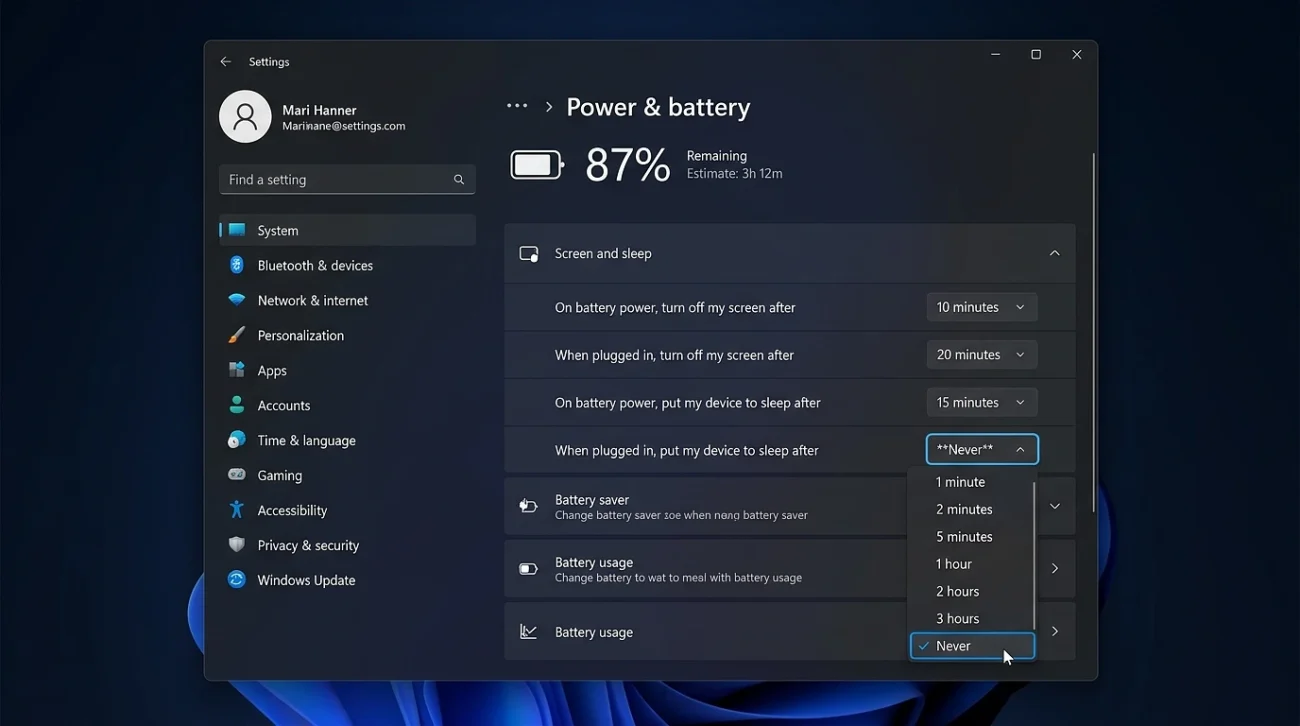
Nothing else matters if the machine keeps knocking itself offline, so start here. Microsoft has the full walkthrough in its official power settings guide, but the short version:
- Open Settings > System > Power & battery.
- Set both Screen and Sleep to Never under the “When plugged in” option.
- On a laptop, search the Start menu for “Choose what closing the lid does” and set it to Do nothing while plugged in, or shutting the lid still drops it to sleep.
Keep it plugged in rather than on battery, and the download stops getting cut every time the machine idles out.
Switch Your DNS So The Patch Route Stops Choking
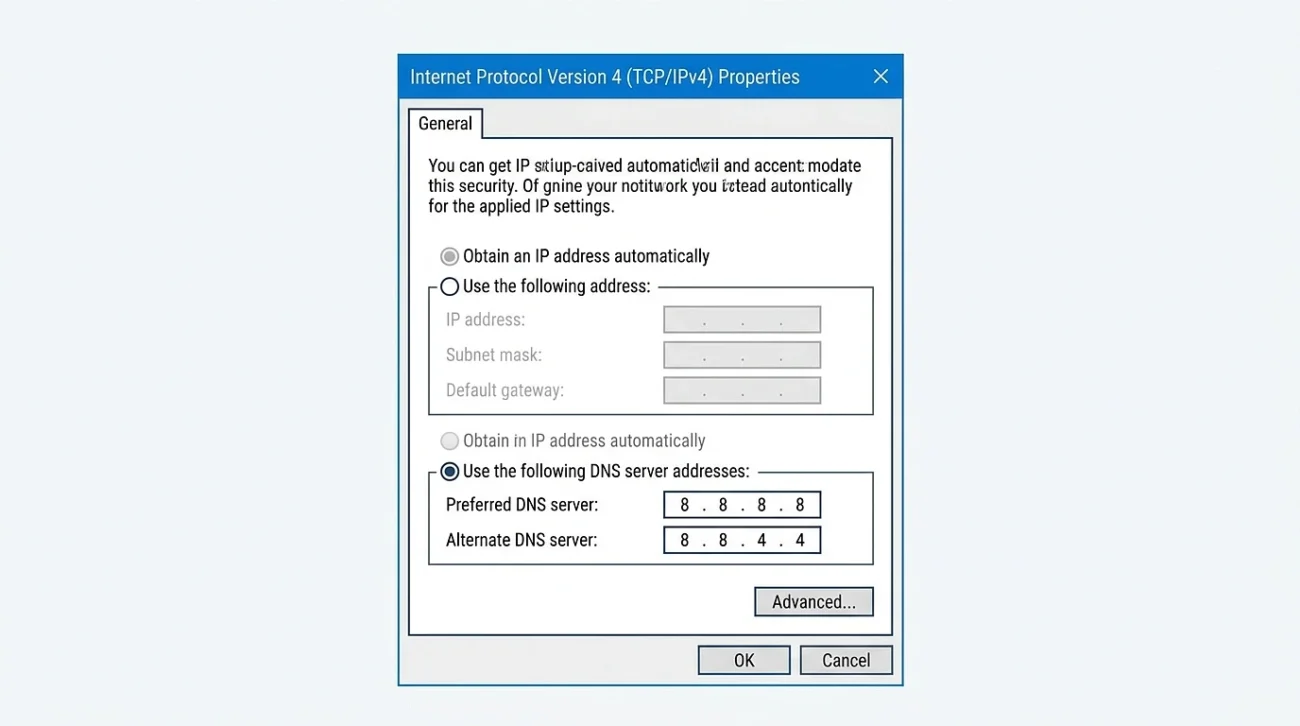
A faulty DNS path is one of the most common causes of this error. Pointing your connection at Google’s DNS clears it for a lot of players. Quick to set up:
- Press Win + R, type
ncpa.cpl, and hit Enter. - Right-click your active connection, choose Properties, then double-click Internet Protocol Version 4 (TCP/IPv4).
- Select “Use the following DNS server addresses” and enter
8.8.8.8as preferred and8.8.4.4as alternate. - Click OK, then open Command Prompt and run
ipconfig /flushdns.
Restart the launcher and let it pick back up. If Google’s DNS doesn’t hold, the older 4.2.2.2 and 4.2.2.4 pair is worth a try too.
Use A VPN If The Error Keeps Coming Back
When DNS alone doesn’t cut it, the routing problem is deeper, and the cleanest fix is to send your traffic out through a different region entirely. This is the single most reliable workaround affected players land on. Connect a VPN to a nearby, stable region first, then launch. If your speed jumps from a crawl to something usable, you’ve found your culprit. Keep the VPN on until the install fully finishes, then drop it.
Worth knowing: SE support also lists VPNs as something that can occasionally trigger the error on its end, so if one makes things worse, switch the region or turn it off and lean on the other fixes.
Open The Patch Ports Your ISP Might Be Blocking
Still stuck? Square Enix’s support team points to specific ports the launcher needs open. Ask your ISP to open these, or forward them in your router:
- TCP 54992 through 54994.
- TCP 55006 through 55007.
- TCP 55021 through 55040.
While you’re at it, power-cycle the router by unplugging it for 5 to 10 minutes, then start the download fresh.
Delete The Stuck Patch Chunk So It Resumes Instead Of Erroring
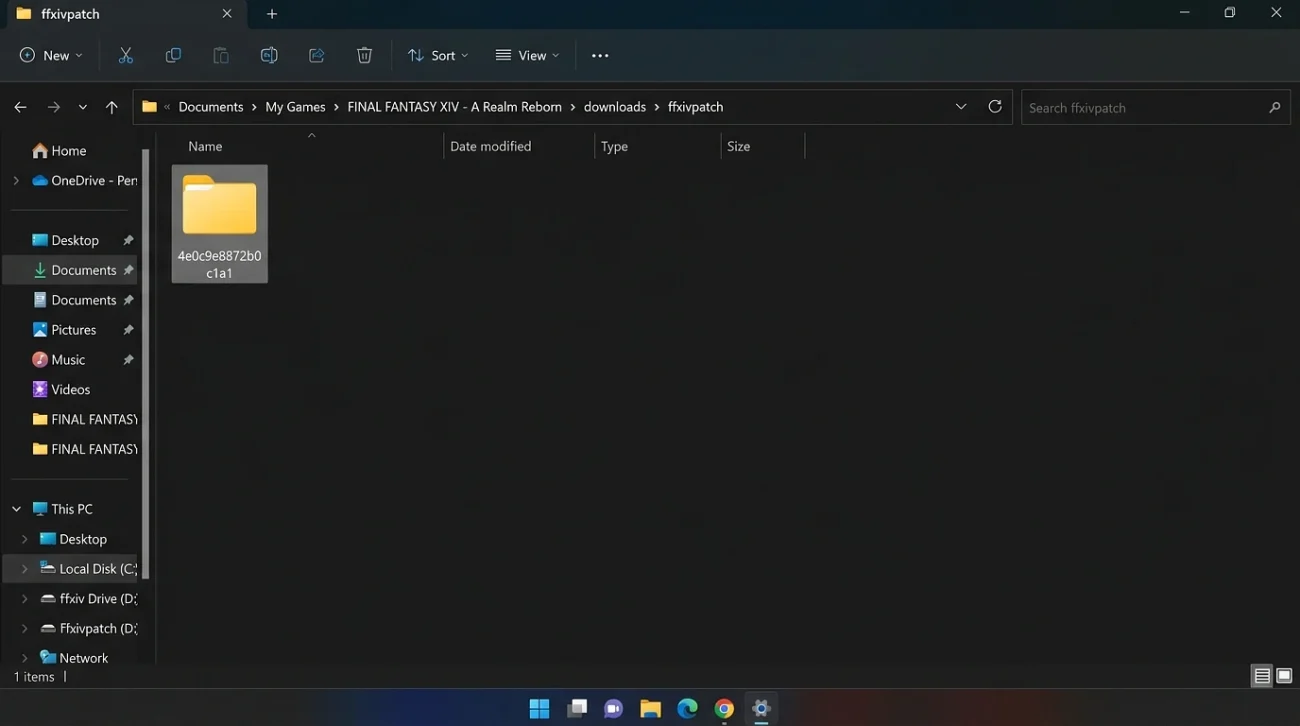
If the launcher errors before it downloads anything, one corrupted piece is jamming the works. Clear it:
- Close the launcher completely.
- Open Documents\My Games\FINAL FANTASY XIV – A Realm Reborn\downloads\ffxivpatch.
- Delete the oddly named subfolder sitting inside it.
- Restart your PC, then start the launcher again.
One rule: only delete inside that ffxivpatch downloads folder. Don’t go near your installed gaming directory, or you’ll be starting the whole 138GB over.
You’re Not Re-Downloading 138GB Every Time
That 1,416-minute estimate makes this feel like one impossible all-nighter, and it isn’t. The launcher tracks your progress through the Documents folder and resumes from where it stopped, installing patch pieces as it goes rather than holding everything to the end. Closing the launcher or rebooting won’t send you back to zero, so you can finish across a few sessions without sweating it. Just don’t delete patch files by hand mid-download, because the launcher can decide they’re unusable and wipe the lot to start over.
What Won’t Fix This, So Don’t Waste Your Time
A couple of dead ends to skip:
- Steam’s “Verify integrity of game files” does nothing here, since Steam isn’t the thing fetching the patches.
- Reinstalling from scratch just pushes the same 138GB back down the same broken route, so sort the sleep and connection issues first.
Fix the sleep settings, clean up the connection path, and the download finishes on the copy you already own.