Xbox Cloud Gaming Error “An Error Occurred While Processing Your Request”: What It Means and How to Fix It

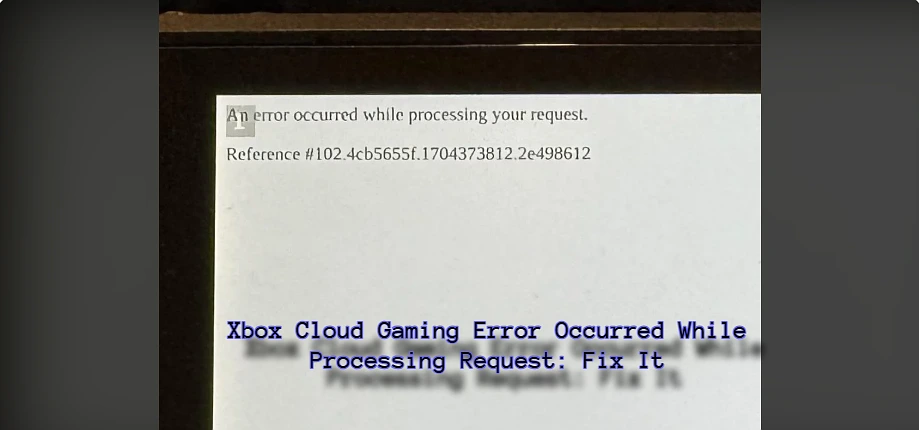
This error almost always means Xbox Cloud Gaming’s backend is having a problem, not your Steam Deck, console, or account. Check the Xbox status page first to see if Cloud Gaming is flagged as down. If it’s not, close the app fully and relaunch it, sign out and back into your Microsoft account, and turn off any VPN before trying again. Most cases clear up within a few hours on their own.
If Xbox Cloud Gaming just threw a plain white page at you with the line “An error occurred while processing your request” and a long reference number underneath it, it’s almost never your console or your account. It’s usually a backend hiccup on Microsoft’s side, and there are a handful of things worth trying before you assume anything is actually broken on your end.
That error page isn’t even an Xbox error page in the design sense. It’s a generic server error template, the kind you’d see from any web service when something fails between your request and the response coming back. Xbox Cloud Gaming runs through a browser layer even when you’re using the dedicated app, and when that layer can’t complete a handshake with the streaming servers, this is what gets shown instead of your game.
What The Reference Number
That string after “Reference #” isn’t a code you need to look up or decode. It’s a session identifier, basically a receipt for the specific failed request, and its only real use is giving Xbox support something to search their logs for if you end up contacting them. Don’t spend time trying to match it against anything online, it won’t tell you what went wrong on its own.
Check Whether It’s A Service Outage First
Before touching any settings, pull up the Xbox status page and look specifically at Cloud Gaming, not just the general Xbox Live status. Cloud Gaming has its own row and it can be flagged as degraded while everything else shows green.
If it’s marked as having issues, that’s your answer, and the fix is just waiting it out. This step alone catches a good chunk of these errors because Cloud Gaming’s backend has had regional capacity issues before, especially during peak evening hours in certain regions.
Clear Your Cache Or Fully Close The App
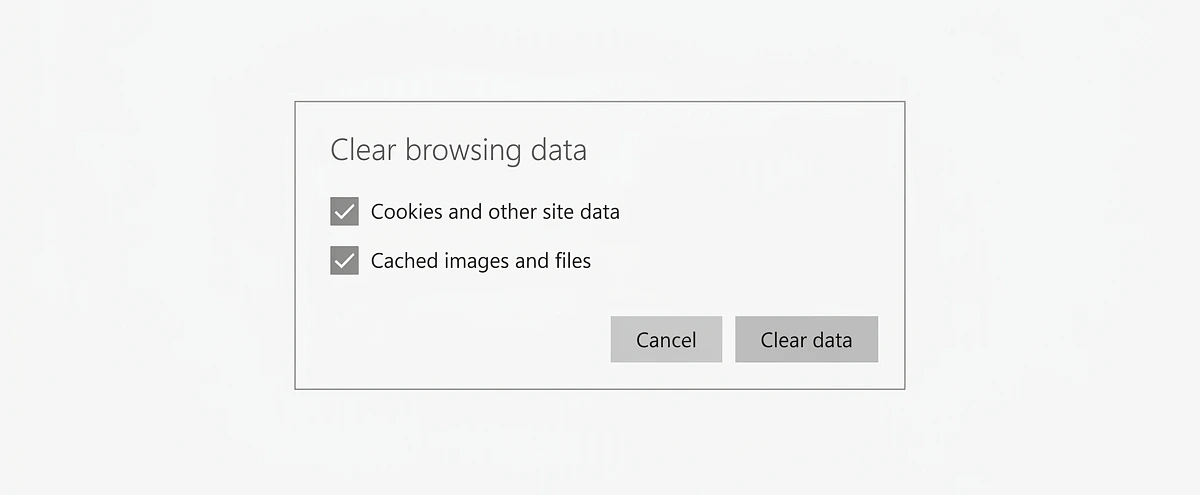
If status looks clean, the next most common cause is a stuck session on your end.
On Browser
Clear the site’s cookies and cache specifically, not your whole browser history, just for xbox.com or cloud.gaming related domains.
On Steam Deck Or A Dedicated App
Don’t just back out of the video games. Actually close the app completely and relaunch it. A half closed session can hold onto a broken authentication token and keep throwing this same error even after the actual outage clears up.
Sign Out And Back Into Your Microsoft Account
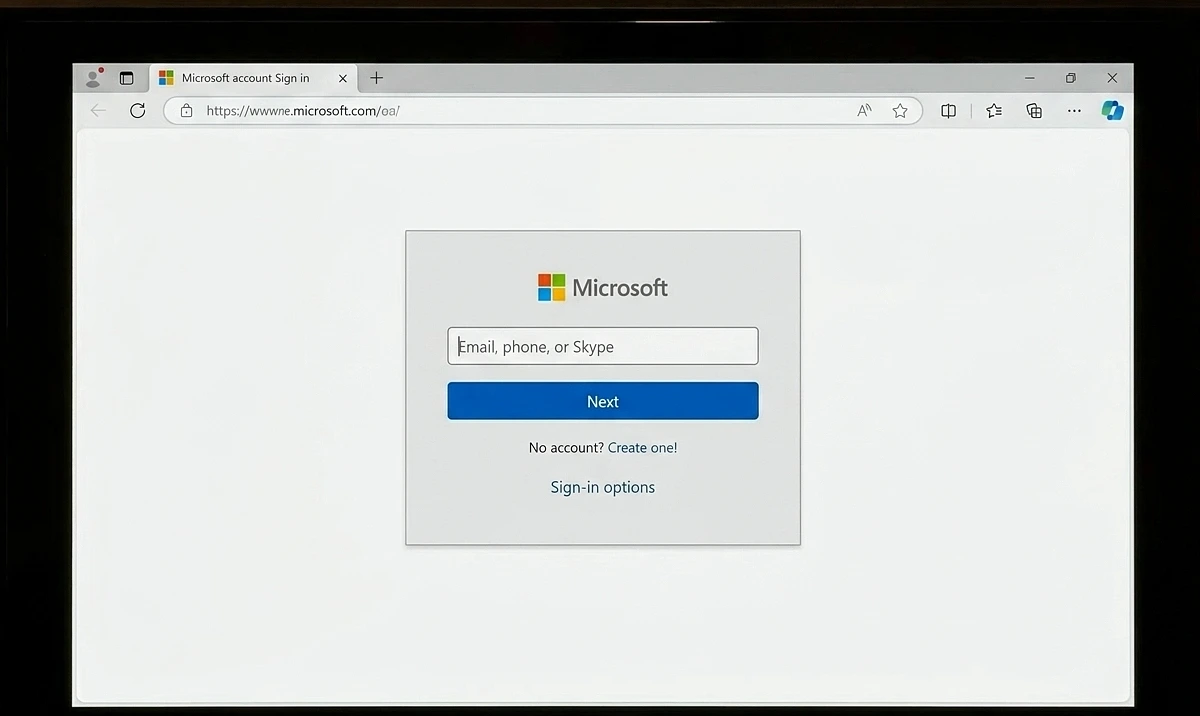
This sounds basic but it fixes more of these than you’d expect. Cloud Gaming authenticates through your Microsoft account token, and that token can go stale, especially if you were signed in during whatever caused the original error.
- Sign all the way out, not just close the tab.
- Sign back in fresh, using your full credentials.
- Expect to go through two factor authentication again if you have it set up.
Try A Different Access Point
If you normally use the browser version, try the dedicated Xbox app instead, or vice versa. They don’t always fail together. Sometimes one path routes through a slightly different set of servers or a cached configuration that’s broken while the other one is fine. This isn’t a permanent fix, just a way to confirm whether the problem is really systemic or just stuck on one particular login path.
Turn Off Any VPN Or Proxy
Cloud Gaming is strict about where your connection appears to originate from, and it needs a stable, consistent regional signal to route you to the right server cluster.
If you've got a VPN running, even one you forgot was on, turn it off and try again. Split routing or a VPN that changes your apparent location mid session is a known trigger for generic processing errors like this one, because the backend can't cleanly match your account region to your connection.
What To Do If Nothing Above Works
If you’ve worked through the list below and you’re still getting the same reference number pattern, go ahead and report it directly to Xbox support with the reference number in hand.
- Checked Cloud Gaming status specifically.
- Cleared cache or fully closed and relaunched the app.
- Signed out and back into your Microsoft account.
- Tried both the browser and the dedicated app.
- Confirmed no VPN or proxy was interfering.
At that point it’s likely something specific to your account or region that a general troubleshooting pass won’t catch, and Xbox support can actually search that session ID against their backend logs.
Since this worked fine for you last week and nothing changed on your end, the most likely explanation is a temporary backend issue tied to a rollout or regional capacity problem rather than anything broken in your setup. These tend to resolve within a few hours to a day without you needing to do anything at all, so if the steps above don’t immediately fix it, it’s not unreasonable to just try again later that same day.