
Why Is My Gaming PC Overheating? (And How to Actually Fix It)

You’re three rounds deep into a ranked match. The squad’s set up. Then your framerate falls off a cliff, the fans start screaming, and the screen goes black.
If that sounds familiar, your PC isn’t broken. It’s overheating.
Gaming hardware pushes a ridiculous amount of heat out of a small box. When the cooling can’t keep pace, your components do the only thing they can to save themselves they throttle. Performance drops. Sometimes the whole machine just shuts off mid-fight to protect itself from frying.
The Warning Signs You Shouldn’t Ignore
Your PC almost always tells you it’s overheating before it dies. The signals are easy to miss if you’re not looking for them.
- Framerate tanking out of nowhere during heavy scenes this is thermal throttling, the CPU or GPU deliberately slowing itself down.
- Fans running flat-out even when you’re just on the desktop or watching YouTube.
- Visual artifacts weird flickering lines, blocky patterns, or wrong colors mid-game (that’s a GPU screaming for help).
- Random crashes, BSODs, or sudden shutdowns with no error, no warning, nothing.
One of these on its own might be something else. Two or more together? It’s heat.
What’s Actually Causing the Heat
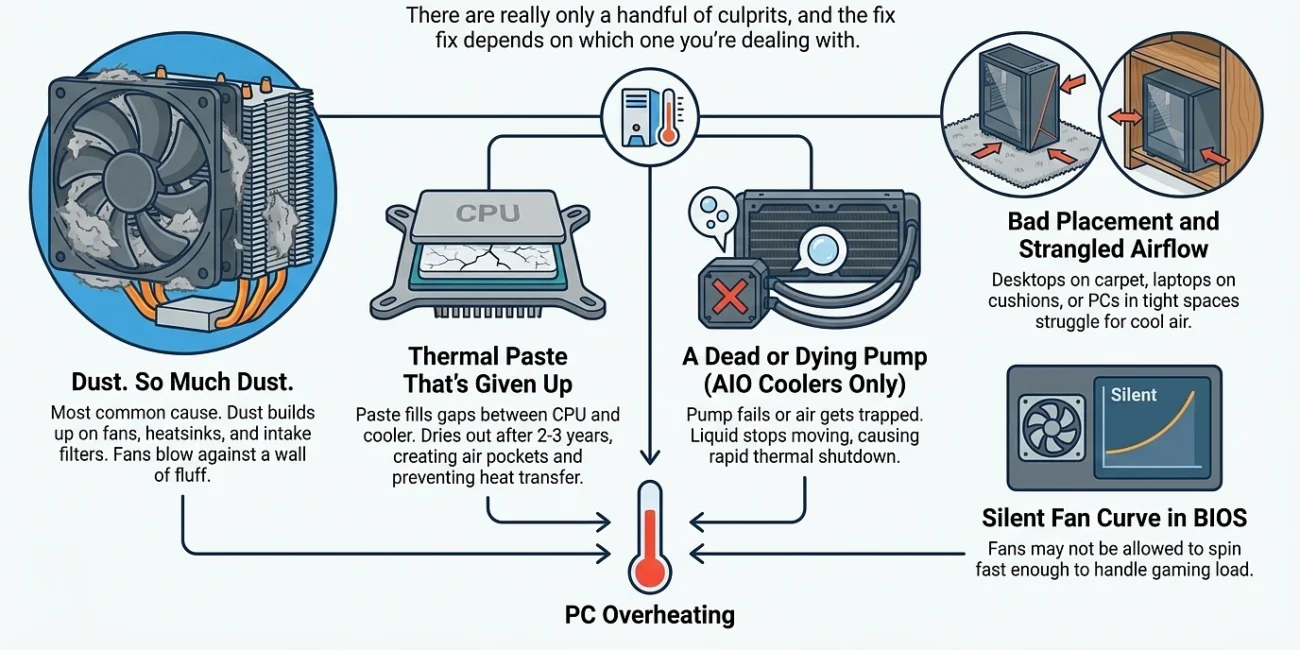
There are really only a handful of culprits, and the fix depends on which one you’re dealing with.
Dust. So Much Dust.
This is the most common cause, full stop. Dust builds up on fan blades, packs itself into the thin metal fins of your heatsink, and clogs intake filters until barely any air gets through. The fans are still spinning, but they’re basically blowing air against a wall of fluff.
If you’ve never opened your PC and it’s more than a year old, this is probably your problem.
Thermal Paste That’s Given Up
Between your CPU and its cooler sits a thin layer of thermal paste. It fills the microscopic gaps in the metal so heat actually transfers from chip to cooler instead of getting stuck. Paste typically lasts about 2 to 3 years before it dries out and cracks. Once that happens, your CPU is essentially trying to cool itself through air pockets. Temperatures will climb fast.
A Dead or Dying Pump (AIO Coolers Only)
Got a liquid cooler? There’s a small pump inside the block sitting on your CPU that pushes coolant up to the radiator. If that pump fails or if air bubbles get trapped in the loop the liquid stops moving and heat builds up almost instantly. We’re talking thermal shutdown within minutes of booting.
Bad Placement and Strangled Airflow
Sometimes the issue isn’t inside the case at all.
A desktop sitting directly on carpet is suffocating itself through the bottom intake. A gaming laptop running on a duvet or a couch cushion is doing the same thing. Even a desktop shoved into a tight cubby with no breathing room will struggle, because the fans are just recycling the same hot air over and over.And if you’ve got your fan curve set to “Silent” in the BIOS, your fans might literally not be allowed to spin fast enough to handle gaming load.
How to Fix It
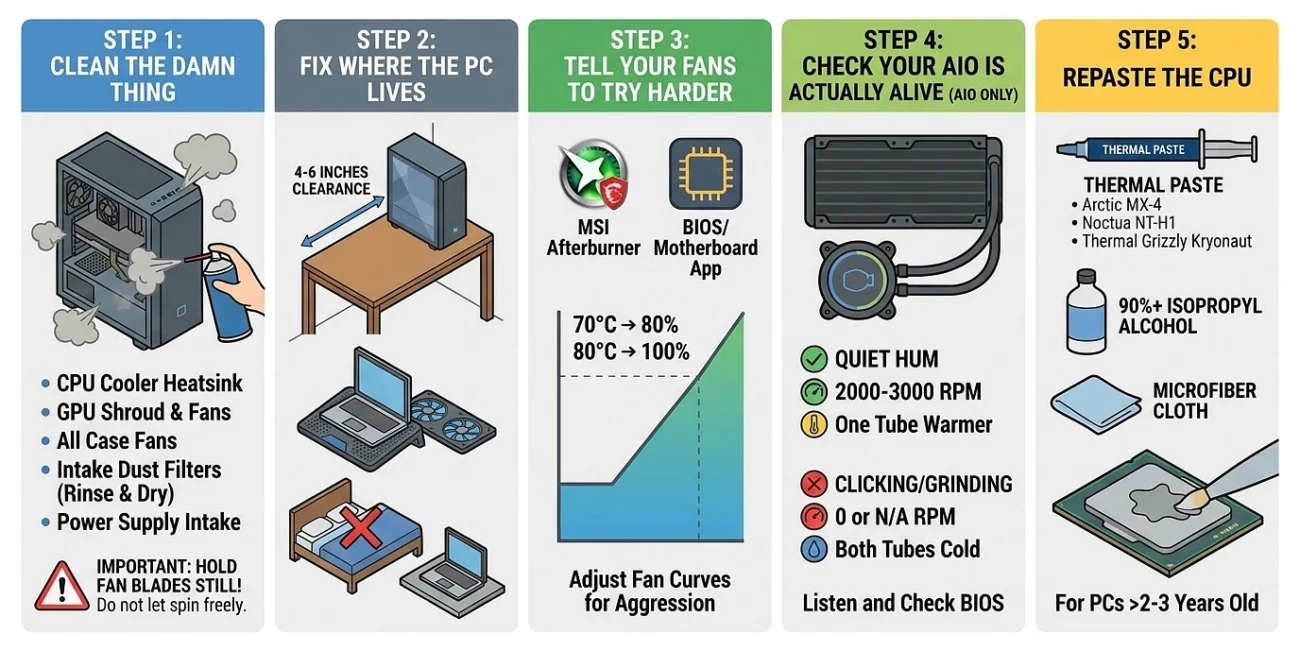
You don’t need a repair shop. You need maybe an hour, a screwdriver, and a can of compressed air.
Step 1: Clean the Damn Thing
Shut it down. Unplug it. Take it somewhere you don’t mind getting dusty balcony, garage, outside.
Pop the side panel off. Grab compressed air and blow out:
- The CPU cooler heatsink (or AIO radiator fins).
- The GPU shroud and its fans.
- All case fans.
- The intake dust filters (these come out and can be rinsed with water let them dry fully before reinstalling).
- The power supply intake.
One important thing: hold the fan blades still with your finger while you blast air at them. If you let them spin freely from the air pressure, they generate voltage backwards through the fan header and can fry the motherboard connection. People learn this the expensive way.
For laptops, unscrew the back plate and clean the heatsink fins and fan in the same way. The intakes will be packed with felt-like dust mats those have to come out.
Step 2: Fix Where the PC Lives
For desktops, get the tower off the carpet. A hard surface desk, wooden board, anything lets the bottom intake actually pull air. Leave at least 4 to 6 inches of clearance behind the case so the exhaust isn’t blowing into a wall.
For laptops, hard flat surfaces only. No beds, no laps with blankets, no couches. If you game on a laptop regularly, just buy a cooling pad even a basic $25 one with two fans will drop your temps noticeably by feeding cold air straight into the bottom vents. Propping the back up with a couple of bottle caps works too in a pinch.
Step 3: Tell Your Fans to Try Harder
Default fan curves are tuned to be quiet, not cool. You can fix that.
For your GPU: download MSI Afterburner (free, works with any brand of card despite the name). Find the fan curve editor. Bump the curve up so it hits 80% by the time the card reaches 70°C, and 100% by 80°C.
For your CPU and case fans: this lives in your motherboard’s BIOS, or in the manufacturer’s desktop app (Asus Armoury Crate, MSI Center, Gigabyte Control Center, etc). Look for “Fan Curve” or “Smart Fan.” Push the aggression up. Yes, it’ll be louder. That’s the trade.
Step 4: Check Your AIO is Actually Alive
Skip this section if you have an air cooler.
Boot the PC and listen. A working pump is barely audible a quiet hum or nothing at all. A failing pump clicks, grinds, or makes a gurgling water sound. A dead pump makes no sound and your CPU will hit 90°C+ within a minute of booting.
Open your motherboard’s BIOS (mash Delete or F2 during startup) and look at the fan/pump readings. The CPU_PUMP or AIO_PUMP header should show somewhere between 2000 and 3000 RPM. If it says 0 or N/A, the pump’s dead and the cooler needs replacing.
Quick physical check: with the PC running, touch both tubes near the radiator. One should be warmer than the other (that’s the hot liquid coming off the CPU). If they’re the same temperature especially if both are cold while the CPU is hot fluid isn’t circulating.
Gurgling sounds usually mean trapped air. Gently tilting the case from side to side while it’s running for a minute can sometimes work the bubbles out of the pump head.
Step 5: Repaste the CPU
If your PC is more than two or three years old and the cleaning didn’t fix things, the paste is the next suspect.
What you need:
- A tube of decent thermal paste (Arctic MX-4, Noctua NT-H1, or Thermal Grizzly Kryonaut anything in the $8-15 range).
- 90%+ isopropyl alcohol.
- A microfiber cloth or coffee filters (lint-free).
Process:
Unmount the CPU cooler. It’ll either unscrew (most air coolers and AIOs) or unclip. Pull it straight up gently sometimes old paste glues the cooler to the CPU and you’ll need to twist slightly to break the seal.
Wipe the old paste off both the top of the CPU and the bottom of the cooler block. Use the alcohol on the cloth, not directly on the chip. Keep wiping until both surfaces are clean and shiny.
Apply a fresh dot of paste in the center of the CPU. Pea-sized is the right amount about the size of a small chickpea. More is not better. Excess paste just gets squeezed out and can pool around the socket.
Lower the cooler straight down, then tighten the mounting screws in a cross pattern (top-left a turn, bottom-right a turn, top-right a turn, bottom-left a turn) until they’re all snug. Even pressure matters more than tightness.
That’s it. Power on and watch your temps drop, often by 10°C or more.
What Counts as a Safe Temperature?
Grab a free monitoring tool HWiNFO64 is the gold standard, HWMonitor is simpler if you just want the basics. Run it in the background while you game and check the max temps after.
Here’s roughly what you’re looking for:
| Component | Idle | Gaming | Danger Zone |
|---|---|---|---|
| CPU | 35–50°C | 65–80°C | 85°C and up |
| GPU | 30–45°C | 65–78°C | 85°C and up |
A modern CPU briefly touching 85°C during a stress test isn’t the end of the world. Sitting at 90°C+ for hours every time you game is a problem, and it’s shortening the life of your chip.
GPUs tend to run cooler than CPUs under load. If your GPU is hotter than your CPU during gaming, the airflow path in your case probably needs rethinking usually more intake fans at the front or bottom.
One More Tips
If you’ve cleaned, repasted, fixed the placement, and cranked the fans and you’re still throttling the issue might be the room itself. A 35°C room in summer with no AC will cause overheating no matter how good your cooler is, because the fans are pulling in already-hot air. Sometimes the fix is opening a window or sticking a desk fan next to the tower.
Heat problems are almost always solvable at home. The expensive components inside your PC are designed to last a decade if you keep them cool. Five minutes of compressed air every few months and a re-paste every two to three years is the whole maintenance routine.