
Hakchi CE “Access To The Path Is Denied” On Startup? Look At Where Your Games Folder Lives

Key Takeaway
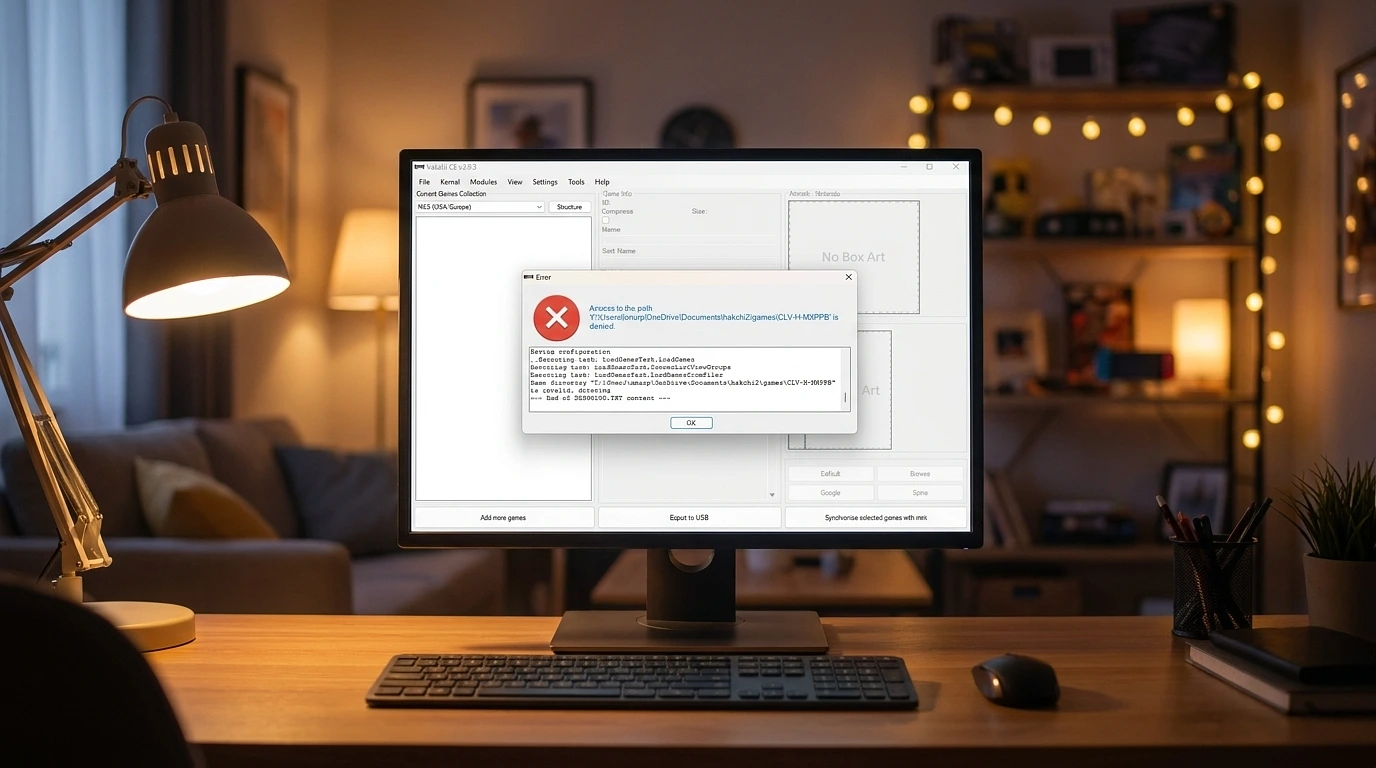
- The cause is OneDrive. If the path in your error contains
OneDrive\Documents, your Hakchi games folder is being synced to the cloud, and OneDrive is locking files Hakchi needs to open. - Windows 11 did this without asking. It redirects Documents into OneDrive during setup, so Hakchi installed itself into a synced folder.
- Move Hakchi out. Pause OneDrive, disable Files On-Demand, then move your whole
hakchi2folder to a plain path such asC:\hakchi2. - Clear the broken game folders left behind in
games, relaunch from the new location, re-add your ROMs. - Delete selected games follows the ticked checkboxes, not the highlighted row. That is why games vanished from Super Famicom and Genesis too.
- Still stuck? Run as administrator, clear the read-only attribute, add an antivirus exclusion, rename the leftover config folders in
%appdata%.
The Error Looks Like This:
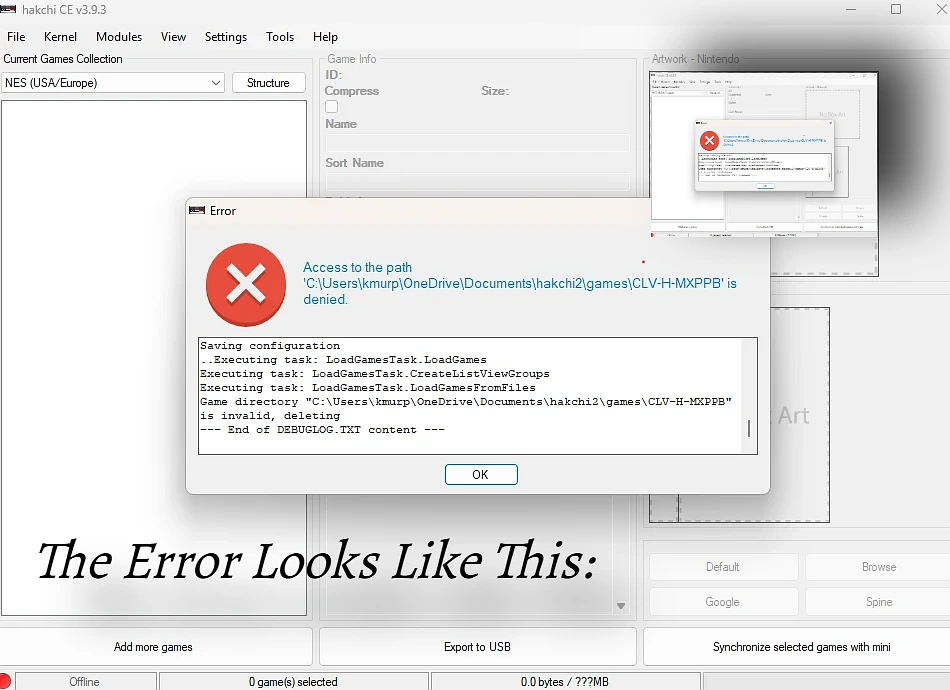
Access to the path 'C:\Users\[username]\OneDrive\Documents\hakchi2\games\CLV-H-MXPPB' is denied.

Game directory "C:\Users\[username]\OneDrive\Documents\hakchi2\games\CLV-H-MXPPB"
is invalid, deleting
Two separate things went wrong. One is how deletion works in Hakchi. The other was waiting to happen regardless.
Why OneDrive breaks Hakchi
Your hypackel games folder is inside OneDrive\Documents, so Microsoft is syncing every game folder to the cloud.
Windows 11 enables OneDrive backup for Documents by default and redirects the folder. Any application writing to what it thinks is Documents is writing into a synced folder instead.
The specific problem is Files On-Demand. Instead of keeping files on your disk, OneDrive leaves a placeholder that looks like a file in Explorer but must be downloaded before anything can read it. Hakchi opens the folder, hits a placeholder or a file locked mid-sync, and Windows returns access denied.
That is why the deletion failed. Hakchi tried to remove those folders, OneDrive was holding some of them, the removal half completed. Hakchi now has configuration entries pointing at folders it can neither read nor delete, which is why the error returns on every launch and why “is invalid, deleting” never resolves.
Why Extra Games Disappeared
Delete selected games removes every game with a tick in its checkbox, not the game you right clicked on.
Highlighting a row and ticking a checkbox are different states. If games were ticked across NES, Super Famicom and Genesis from an earlier sync, the command took all of them.
The Fix
Close Hakchi completely first. If it is running, it holds files open.
1. Pause OneDrive syncing. Click the OneDrive cloud icon in your system tray, open settings, pause syncing for two hours.
2. Make the files real. In OneDrive settings, turn off Files On-Demand. Or right click the hakchi2 folder and choose Always keep on this device. Wait for the download to finish. Placeholders will not survive being moved.
3. Move Hakchi out of OneDrive. Create a folder OneDrive does not touch:
C:\hakchi2Move your entire hakchi2 folder there from OneDrive\Documents. Avoid Documents, Desktop and Pictures, which are the three folders Windows 11 redirects by default.
If Windows refuses to move a file because it is in use, restart and try again.
4. Clear the broken entries. Open games in the relocated folder. Delete any folders matching the codes in your error, such as CLV-H-MXPPB, that are empty or that Hakchi flagged.
5. Relaunch from the new location. Point Hakchi at your ROMs and re-add the games you lost.
If It Still Fails
Run as administrator. Right click the executable, Properties, Compatibility, tick Run as administrator. Some Hakchi operations fail quietly without elevation.
Clear read-only. Right click the hakchi2 folder, Properties, untick Read-only, apply to all subfolders.
Add an antivirus exclusion. Hakchi writes many small files quickly and modifies USB devices, which security software often flags. Exclude the hakchi2 folder.
Clear leftover config. Press Windows and R, type %appdata%, find the Hakchi folders. Rename rather than delete them so you can go back. Hakchi rebuilds them on next launch.
Two Habits
Keep emulation tools out of synced folders. Emulators, ROM managers and modding tools write frequently and in bulk. Cloud sync introduces file locks and placeholders that break them. A plain folder on the drive root avoids the problem entirely.
Back up before bulk deletions. Copy the hakchi2 folder somewhere safe first. A mistaken delete then costs nothing but restore time.