
How to Optimise a Gaming PC for Streaming

Most people who start streaming assume their Gaming PC isn’t good enough. They blame the GPU, eye an upgrade, save up, swap parts and the stream still drops frames. The hardware was rarely the problem.
Streaming pushes your PC to do two demanding jobs at the same time. Render a game at smooth frame rates, and simultaneously encode that gameplay into a compressed video feed and shove it across the internet. Done wrong, both jobs fight for the same resources and both suffer. Done right, the workload splits between components that were sitting half-idle anyway.
Switch Encoding to your GPU
By default, OBS will sometimes set itself to x264 software encoding, which runs on the CPU. That’s fine if you have a spare 12-core processor doing nothing. You don’t. Your CPU is already busy running the game.
Open OBS, go to Settings → Output, change Output Mode to Advanced, and under the Streaming tab look at the Encoder dropdown:
- NVIDIA card → pick NVIDIA NVENC H.264 (new)
- AMD card → pick AMD HW H.264 (AVC)
- Intel Arc → pick QuickSync H.264
Every modern GPU has a dedicated chunk of silicon called a video encoder. It’s a separate part of the card from the bit that renders your game. NVIDIA calls theirs NVENC. AMD calls it VCN. Intel calls it QuickSync. They all do the same job turn raw frames into a streamable H.264 (or HEVC, or AV1) video feed without involving the CPU or the main GPU cores.
The result is that your processor stops trying to do two things, your game stops stuttering, and your stream quality goes up because the encoder is purpose-built for the task.
If you’ve got an RTX 40-series card or newer, you also get AV1 encoding, which delivers better quality at the same bitrate. Twitch’s Enhanced Broadcasting and YouTube both support it now, but check your platform’s current settings before switching it’s still rolling out unevenly.
Pick Stream Settings That Won’t Sabotage You
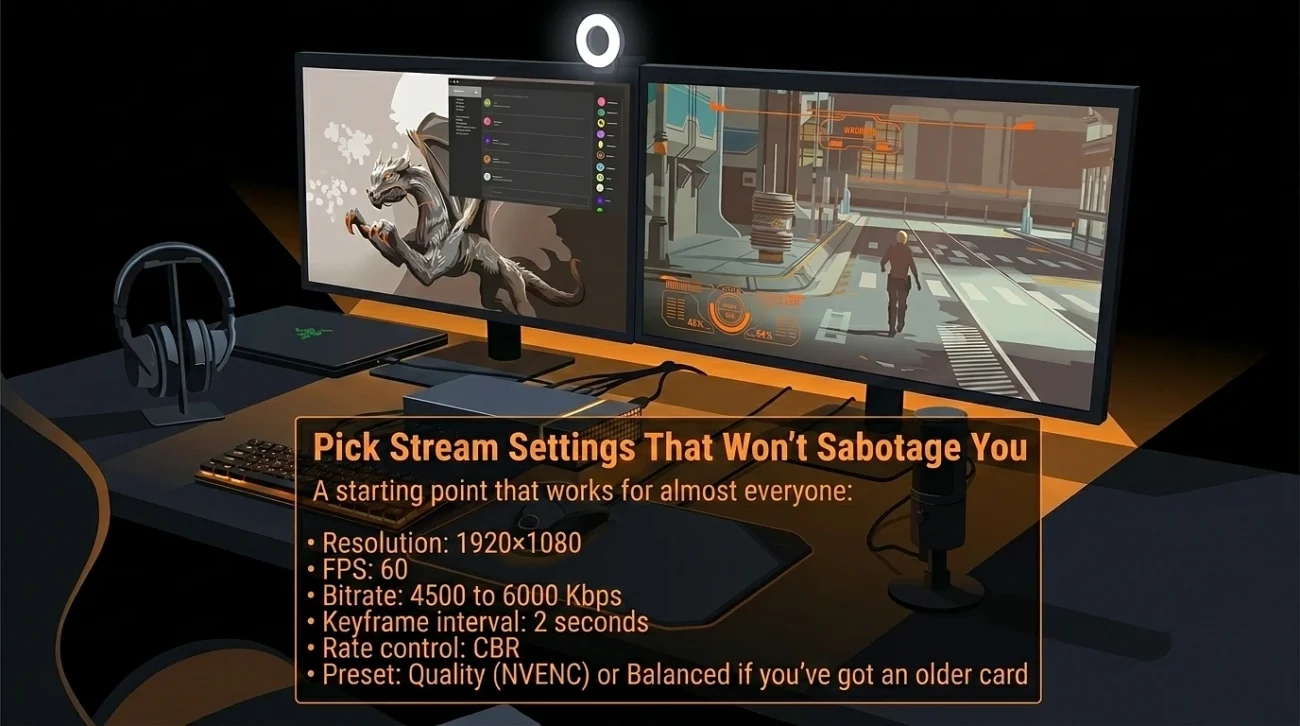
A few things to know about why these numbers:
Twitch caps non-partnered streams at 6000 Kbps. Pushing past that doesn’t help you, it just means Twitch silently throttles your feed and viewers might see weird artefacts. YouTube is more generous but if your viewers are on patchy connections, sending a higher bitrate just buffers them out.
The bigger issue is your upload speed. Your internet upload has to comfortably beat your bitrate, with headroom. A 6000 Kbps stream wants at least 10 Mbps of upload to sit happily, more if anyone else in the house is using the connection. Don’t go off your ISP’s advertised speed run a speed test on Ethernet, see what you actually get, and treat that as the truth.
If your upload is shaky, 4500 Kbps is honestly fine. Modern encoders make low-bitrate streams look way better than they used to.
When 1080p is too Much, Downscale
Here’s a scenario you’ll hit eventually. You’re playing something demanding a new release, maxed out settings and the moment you hit “Start Streaming”, your framerate tanks. NVENC is on. Everything’s configured properly. It still chokes.
What’s happening: the GPU is already running flat out rendering the game, and now you’re asking the same card to also encode 1080p 60. The encoder block is separate from the rendering cores, but they share memory bandwidth, and some cards just don’t have enough.
The fix is to output the stream at 720p without changing what you actually play at.
In OBS, Settings → Video:
- Base (Canvas) Resolution: 1920×1080
- Output (Scaled) Resolution: 1280×720
- Downscale Filter: Lanczos
Your monitor still shows the game at full quality. Viewers get a clean 720p 60 feed, which honestly most of them won’t notice. The GPU stops sweating. Problem solved.
720p 60 also looks better than 1080p 30 to most viewers, by the way. If you ever have to choose, keep the framerate.
Windows is Leaving Performance on the Table
A handful of Windows settings ship with conservative defaults that don’t suit streaming. Worth fixing once and forgetting.
- Game Mode. Type “Game Mode settings” in the Start menu, switch it on. It nudges Windows to ease off background processes when a game is in focus. Small win, but free.
- Hardware Accelerated GPU Scheduling. Settings → System → Display → Graphics → Change default graphics settings. Toggle Hardware-Accelerated GPU Scheduling on, then reboot the change doesn’t apply until you restart. This moves some scheduling work off the CPU and onto the GPU, which is exactly what you want when the CPU is already busy. It’s been stable for years now, no reason not to enable it.
- Power plan. Control Panel → Power Options. Set the active plan to High Performance. If you’ve got a high-end CPU and you want to go further, search for how to unlock the hidden “Ultimate Performance” plan it’s a one-liner in PowerShell. Balanced mode lets your CPU drop into low-power states between bursts of work, which on paper saves electricity and in practice causes the kind of micro-stutters that show up as dropped frames in your stream.
- Set OBS to High priority. Launch OBS, open Task Manager, go to the Details tab, find obs64.exe, right-click → Set priority → High. Don’t pick Realtime that’s a trap. Realtime can starve essential Windows processes and crash things in genuinely weird ways. High is the right setting.
While you’re at it, right-click your OBS shortcut, hit Properties → Compatibility, tick Run this program as an administrator. Windows respects priority settings more consistently when OBS has admin rights.
Network: This is Non-Negotiable
Use Ethernet. Not Wi-Fi.
This isn’t snobbery. Wi-Fi has packet loss, latency variance, and interference that you can’t see but your stream absolutely can. It shows up as dropped frames in OBS, and you’ll spend hours blaming everything else before checking the obvious thing.
If you genuinely can’t run a cable renting, awkward layout, landlord a powerline adapter is the next-best option. They use your home’s electrical wiring to carry network traffic. Not as good as direct Ethernet but a clear step up from Wi-Fi. Mesh systems with wireless backhaul are the worst case for streaming, because the backhaul itself is just more Wi-Fi.
Before you hit Start Streaming, kill the bandwidth thieves:
- Pause Steam, Epic, and Battle.net downloads (all three have a setting to do this automatically during gameplay turn it on).
- Quit cloud sync clients like OneDrive, Dropbox, Google Drive.
- Close any browser tab playing video.
- Pause any system backups.
A 60-second pre-stream habit that prevents a lot of pain.
Background Apps That Quietly Eat Your Performance
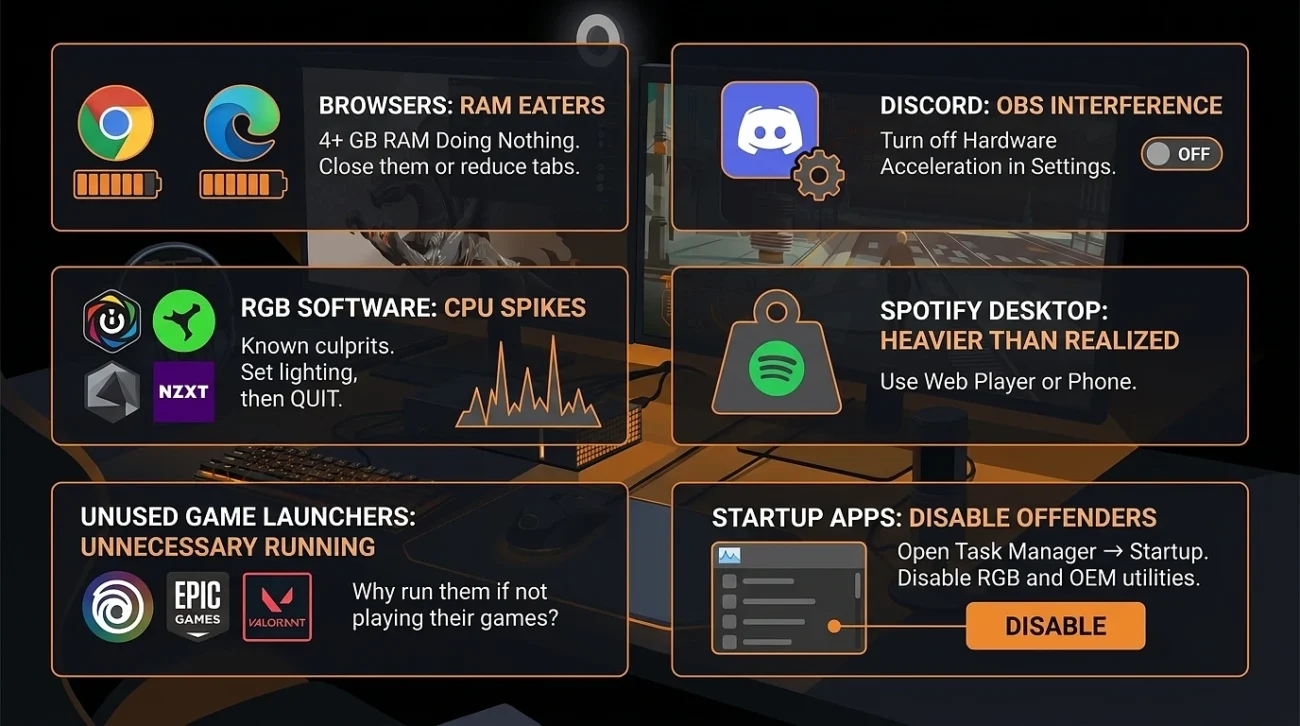
The headline offenders, in rough order of how much trouble they cause:
- Browsers. Chrome and Edge will happily eat 4+ GB of RAM doing nothing. Close them, or at minimum get the tabs down to single digits.
- Discord. Keep it open if you need it for the stream, but go into User Settings → Voice & Video and turn off Hardware Acceleration. It interferes with OBS more than it helps Discord.
- RGB software. Corsair iCUE, Razer Synapse, ASUS Armoury Crate, NZXT CAM all of these are known CPU-spike culprits. Set the lighting you want, then quit the app entirely. The lights stay on.
- Spotify desktop. Heavier than people realise. The web player or your phone is fine while streaming.
- Game launchers you’re not using. Why is the Ubisoft Connect launcher running when you’re playing Valorant?
Open Task Manager → Startup apps and disable anything that doesn’t earn its place at boot. RGB software and OEM utilities like Armoury Crate are the usual offenders. You can still launch them manually when you actually need them.
Drivers: Current, Not Bleeding Edge
Keep GPU drivers reasonably current Game Ready (NVIDIA) or WHQL (AMD) releases are what you want, not the beta channel unless you’re chasing a specific fix. A new driver every month or so is normal. Skipping a few releases is fine.
What people forget is chipset drivers, especially on AMD Ryzen systems. Chipset drivers handle how Windows schedules work across your CPU cores, and outdated ones can hurt performance in ways that look like an OBS problem. Get them direct from AMD or Intel’s support page for your specific motherboard, not from Windows Update Windows Update versions are often older.
Hardware, if You’re Building or Upgrading
The priorities for a streaming PC look different from a pure gaming PC.
- RAM. 32GB is the practical floor in 2026. 16GB technically works but you’ll feel the squeeze the moment OBS, a game, a browser, and Discord are all open. DDR5 speed matters less than just having enough.
- Storage. NVMe SSD for Windows and your most-played games. Loading screens and texture streaming both improve, which matters more than you’d think when you’re live and can’t fill dead air. A second SSD or a big HDD for VOD storage and recordings is fine those don’t need to be fast.
- CPU. Even with NVENC handling encoding, the CPU still feeds the GPU, runs game logic, and runs OBS itself. 6-core is the minimum, 8-core is comfortable. Single-thread performance still matters for a lot of games, especially older or competitive titles.
- GPU. If you have to pick one component to spend on, this is it. The encoder generation matters as much as raw speed NVIDIA’s 8th-gen NVENC (RTX 40-series and newer) is meaningfully better than what came before, and AV1 encoding is now standard on current cards. AMD’s recent encoders have closed a lot of the historical gap with NVIDIA, but NVENC is still the safer pick if streaming quality is your priority.
A Quick Pre-stream Caheck
Before you click Start Streaming:
- Ethernet plugged in (or speed test confirms upload is solid).
- GPU driver from the last month or two.
- OBS running as administrator, encoder set to NVENC / AMD HW / QuickSync.
- Game Mode on, power plan on High Performance.
- Discord, browsers, launcher updates paused or closed.
- Run a 2-minute test stream, open the OBS Stats dock, check for dropped frames.
If you see dropped frames in that test, it’s almost always network or bitrate. Try dropping the bitrate by 1000 Kbps and test again before touching anything else. Don’t start reinstalling things.
When the Settings Stop Being the Answer
If you’ve worked through all of this and the stream still struggles, then yes it might actually be hardware. The two real bottlenecks at that point are usually:
- GPU VRAM. Demanding games at high settings can fill VRAM, and streaming on top of that pushes you over the edge. The symptom is frame drops that get worse the longer you play.
- Upload bandwidth. Your ISP plan might just not deliver what your stream needs. You can test this pCloud or Speedtest both let you see sustained upload, not just burst speeds.
Either of those needs a real fix more VRAM, a better plan that tweaking OBS won’t solve. But genuinely, that’s a minority of cases. Most “I need a new PC” posts on streaming subreddits turn out to be one of the settings above, sitting wrong, doing nothing.